Automatically eject external disks on sleep and reconnect after on OS X
[Updated 1 May 2015]
I’ve recently discovered a new app called Mountain that helps you manage the mounting of volumes on your Mac. I’ve used it for a few weeks now and discovered that it’s well worth your consideration if you’re looking on how you can manage the automatic ejection of external disks on you Mac. Check it out in my update below.
[Updated 23 March 2013]
A couple of readers, Jan and frankspage (see comments below) has recently pointed to me that the script I provided below still does not allow the newer SSD MacBook Airs and MacBook Pro Retina to go into deep sleep mode. It looks like unmounting the SD Card isn’t enough and you really do need to eject out the drive. So I’ve decided to completely re-write my article to reflect all the new findings that was made and largely thanks to Jan who has provided a lot of insights into how to get this to work.
I’ll also be taking into consideration a new set of users that are using this guide to help with the use of the Nifty MiniDrive where the primary eject and re-mount is for the SD card.
So here’s a special thanks to Jan and frankspage for their invaluable inputs to improve this article and in effect, everyone of us that has used this trick. Do help me to spread out the word on this update to anyone you know who are using this guide, especially to those who are using it with the Nifty MiniDrive.

Let’s face it. There’s just never enough storage space on your MacBook. Especially so if you use an SSD (or two in my case) where the GB/$ ratio, while getting better, is still prohibitive if you want to have more than 500GB on your MacBook.
My point is, you’d likely have to deal with a portable external hard disk in your daily work. And if you are like me, all you do is just shut the lid to allow the MacBook to go to sleep and never ever shut it down in between work. So there you go, shutting the lid and then unplug the external hard disks. Then you remembered that you didn’t eject the disks first! So what do you see when you open up the lid again?

Yup. That dreaded “The disk was not ejected properly” dialog box.
Darn it, Apple!
Why can’t the OS X just auto eject the disk when it goes to sleep?

And then there are also the bunch of us that has used the generally idle SD Card slot to expand the MacBook’s storage. This is especially popular amongst the 128GB and 256GB MacBook Air and MacBook Pro Retina users where a Micro SDXC card is used along with the popular Nifty MiniDrive.
But why do you want to auto-eject the Nifty MiniDrive when it’s always plugged in? Isn’t that totally opposite from the point of this article? Well, it seems that with the newer SSD only MacBook Air and MacBook Pro Retinas has a new standby mode and the SD Card prevents the Mac from going into this standby mode. See the Apple support documentation here.
And if you’re wondering, the Mac notebooks that support standby mode are:
- MacBook Pro (Retina, 13-inch, Late 2012 and later)
- MacBook Pro (Retina, 15-inch, Early 2013 and later)
- MacBook Pro (Retina, Mid 2012)
- MacBook Air (Mid 2010) and later
But there is an added complexity with this group of users as you would want an easy way to also auto-remount your always inserted Nifty MiniDrive since you would not want to always unplug and replug the MiniDrive back. And as I’ve discovered, once the SD Card is ejected, your Mac would not ‘see’ the SD Card anymore and thus, would not be able to remount the card when you want it to.
So that’s the premise of this article, to find a way to auto-eject your mounted drives and upon waking up the Mac, auto-remounting any drives that is still connected.
And while we are at it, perhaps maybe you also want to have a way to auto eject any connected network drives? This is especially useful if you don’t want to get any disconnection errors such as when you start using your Mac at work just after leaving from home for example. It could sometimes be embarrassing if you use funny names for your shared network drives and then have it prominently displayed as an error message when you connected your Mac to a projector for a early morning presentation at the office. 🙂
Anyways, I thought that there must be a way that you can execute a script when MacBook goes to sleep. And there surely is also a way to script the ejection of the disks. And as always, Google was the answer and sure enough, I found two ways to do it as well as another great tip from a reader, Jan.
So here are the 3 different ways to do it, each with increasing difficulty to implement them with their pros and cons. But even if the recommendations below may seem complex and scary especially to those of you who are not familiar with using the terminal and running command line scripts, don’t be too afraid to try. I’m putting in extra care to ensure the instructions are as complete as possible and with as much screenshots as possible to guide you through. And if all fails, please do drop me a comment and I’ll help you out as much as I can to get it working for you.
Recommended: Please do read the entire article before working you start to implement whichever methods you wish to so that you completely evaluate all the steps.
Let’s get started!
[Update – 1 May 2015] Potentially the best alternative to all my methods below: Mountain App
Disclaimer: I was provided a review copy of the app for my testing and for me to write up about it here.
I’ve been using this app called Mountain App for a while now. It seems that buried in all the comments of this page was a comment from the developer of Mountain App that attempted to notify me of the Mountain app that was created and had inspirations from on all the methods I’ve put down below, including the different tips that has been shared within the comments. And as I’ve discovered, the Mountain App indeed does everything that’s discussed here.

Mountain app features
Mountain is a full featured volume manager of sorts. It allows you to manage the mounting of your Mac volumes conveniently from the menu bar. It also allows you to remount any volumes that has been unmounted but not yet ejected. If you regularly connect to external servers for file sharing, it also remembers any recent file servers you’ve connected too and then allowing you to easily reconnect to them in a single click of a button. You can also define favourite servers and have them all mounted at the press of a hotkey.

Set favourite servers
There are a lot of advanced features too that allows you to configure how you want Mountain to help you automatically unmount or remount volumes as you want. You can see all the available settings in the screenshot below.

Mountain app advanced configurations
One additional cool feature is the apps ability to identify apps that are locking the volume from being able to be unmounted. With that you can then decide to quit the app, or even force quit the app by holding down the option key.

Discover which apps that’s still using the volume
But best of all, as mentioned above, the app developer has taken into account of the specific use-case of using a Nifty MiniDrive with you MacBook. I’m not going to do any justice by repeating a whole blog post that was written up to discuss how the app makes the features available to support what’s expected, so here’s the link and I highly encourage you to check it out too: http://blog.appgineers.de/post/101608761084/new-advanced-feature-for-nifty-minidrive-users. As you can see below, there is the option to unmount external volumes on sleep. And also re-mounting unmounted volumes on wake. Additionally, the app also implements the force remount of USB storages, similar to method 3 below.

Unmount volumes on sleep
Personally, I don’t use the Nifty MiniDrive much anymore after I’ve upgraded to my 1TB MacBook Pro, but even then, I still use the Mountain app for the various reasons I’ve stated above.
The Pros: Easy to use, very full featured app that’s compatible with OS X Yosemite.
The Cons: To be honest, there isn’t really one. But I have to put one, it’s the $5.99 price tag. Then again, I think it is a fair price point considering the capabilities of the app.
You can buy the app here: http://appgineers.de/mountain/
Method 1: Auto Eject only (Easiest)
As it seems, this frustration is not new (duh) and there are a couple of applications on the Mac App Store that do exactly this, auto eject any disk that you like to upon sleep. The first app is called Jettison priced at $1.99.


The other app is called autoEJECT priced slightly more expensive at $2.99.


Both apps auto-ejects the disks as promised. However, it does not remount ejected SD Cards and USB flash drives, which is why I put this down as an auto-eject only option since it’s not a full proof solution.
The Pros: The advantage of this method is obvious. It’s easy since it’s built as an app. No brainer to install.
The Cons: Unfortunately it doesn’t always automatically remount your ejected disks, and especially so for ejected SD Cards as most of us has discovered. Plus, it’s not free. 🙂
Method 2: Using Sleepwatcher and auto un-mounting/re-mounting script
The second method here is to use a utility called SleepWatcher. It runs as a daemon and monitors the sleep activity of your MacBook and provides you the ability to executes scripts when the sleep mode activates and vice versa.
So now, what we have is a way to unmount and remount disks upon sleep and wake of the MacBook! But why using un-mount instead of ejecting a disk? As I mentioned above, ejecting has the effect of not allowing you to easily remount your ejected disks. You’d need to physically unplug and replug the disk back to your MacBook for it to be detected and remounted again. This may not be an issue with USB connected external HDDs but for the likes of the Nifty MiniDrives, this isn’t all that fun to do. But before I go on with this method, I also mentioned above that there is a downside to this step, especially if your MacBook is one of the newer ones that support a new Standby mode and do want to use this Standby mode. It seems that un-mounting prevents standby mode from working. So the only way is to eject the disk which also complicates how you would automatically re-mount the disk.
So if that’s the case, is this method still relevant for MacBooks that supports standby mode? It depends on one more thing. Do you also use Power Nap? This is because Power Nap also prevents your MacBook from going into standby mode! If so, then you might as well just un-mount and re-mount all external disks since its never going into standby mode. But if you do want to have standby mode working, go on towards Method 3 after installing Sleepwatcher as that is still required. I’ll let you know when to skip ahead.
Installing Sleepwatcher (Required for Method 2 AND 3)
To install Sleepwatcher, simply download the latest version of SleepWatcher (link here). Once downloaded, extract the tgz archive in the Downloads folder if it’s not already done so automatically.

Downloaded and extracted Sleepwatcher to the download folder. Please take note of the folder name.
The current version of Sleepwatcher as of the update of this article is version 2.2 and therefore the name of the folder you would see is sleepwatcher_2.2. If otherwise, you would need to change the following commands to be as per the latest name of the folder.
Beginners tip: To open up Terminal, hit the command+space key to use Spotlight and then type in terminal to quickly find the app. Press enter to run it.

Use Spotlight to quickly open up Terminal
Now, to install Sleepwatcher, just run the following commands in Terminal. The first command below will require you to enter your Mac’s password. Just enter the password and the command will execute. These commands would not
sudo mkdir -p /usr/local/sbin /usr/local/share/man/man8
sudo cp ~/Downloads/sleepwatcher_2.2/sleepwatcher /usr/local/sbin
sudo cp ~/Downloads/sleepwatcher_2.2/sleepwatcher.8 /usr/local/share/man/man8

Copying the required Sleepwatcher files to the rightful locations
Next, we need to ensure that SleepWatcher is launched every time OS X starts up. The download includes a sample configuration plist file that we would use. And I’ll shorten up the file name in the copy command below.
sudo mv ~/Downloads/sleepwatcher_2.2/config/de.bernhard-baehr.sleepwatcher-20compatibility-localuser.plist ~/Library/LaunchAgents/de.bernhard-baehr.sleepwatcher.plist
sudo chown root ~/Library/LaunchAgents/de.bernhard-baehr.sleepwatcher.plist
sudo chmod 644 ~/Library/LaunchAgents/de.bernhard-baehr.sleepwatcher.plist
sudo launchctl load ~/Library/LaunchAgents/de.bernhard-baehr.sleepwatcher.plist

Loading the configurations and allowing sleepwatcher to launch everytime your MacBook starts up
At this point, you’ve successfully installed SleepWatcher. And if you are planning to use method 3, WAIT! There’s one more thing to do before moving on.
We have to get to know a little bit more of about your MacBook and this can be slightly tricky. You see, the method I’m using is not to eject the disks but to unmount the volumes. Unlike the command to eject disks, there is the danger of unmount the hard disks that your OS X is running on. Therefore, it’s important that you check using the following commands in order to filter out the hard disks that you do not want to be unmounted.
Don’t worry, I’ll step you through what you need to do.
On Terminal and run the following command.
/usr/sbin/diskutil list
You should see something like the follwing:-

List of disks
In most cases, disk0 is where your main hard disk is installed (Macintosh HDD). And if that is the only hard disk you have installed on your MacBook, then you’d want to unmount anything that’s mounted as disk1 and above. This should be true for most MacBook Air and MacBook Pro Retina users since there is only one SATA interface and only one SSD installed. However, if you use FileVault on your MacBook, some of you may still find that the external disks is mounted as disk2. in that case, then you’d only want to unmount anything that’s mounted as disk2 and above.
In my specific case, disk0 is where my Samsung 830 256GB SSD is mounted to and disk1 is where my Intel 320 Series 300GB SSD is mounted to. Both of these disks are the ones that I DO NOT want to be unmounted at any point in time. That means the ‘magic number‘ for me is disk2 and above.
So let’s keep this ‘magic number‘ is disk1 or disk2 depending on your MacBook’s configurations.
Remember, this is an important step that you should not skip especially since I’m providing a sample script in my guide below. You’ll need to edit the provided script if your ‘magic’ number is disk2 like mine is.
Method 3 skipping point. Ok. If you want to proceed on with method two on just un-mouting, continue on. Otherwise, it’s time to skip over to Method 3 below.
Let’s move on to create the scripts. Again, if you’re even the slightest bit unsure, just drop me a comment and I’ll gladly help you along.
The next step is to create the sleep and wakeup script that SleepWatcher will execute. All you need to do is to use a text editor (I highly recommend using TextWrangler) and create the following files and save both of them on your Desktop.
Sleep script
To create your own sleep.txt, copy and paste the following two lines, and then save the file on the Desktop.
#!/bin/sh
/usr/sbin/diskutil list | grep -e 'disk[1-9]s.*' | sed 's/.*\(disk[0-9].*\)/\1/' | xargs -I{} /usr/sbin/diskutil unmount {}
Now, if your ‘magic number‘ is disk1, then you don’t need to change that line. Otherwise, if it’s disk2, the you will need to change the grep -e ‘disk[1-9]s.‘ to grep -e ‘disk[2-9]s.‘. Essentially, you are just changing the filter of which the script uses to determine which disks to unmount.
Wakeup script
Next, the wakeup.txt script. And do the same with the …disk[1-9]… as you did with the sleep script if your ‘magic number‘ is disk2.
#!/bin/sh
/usr/sbin/diskutil list | grep -e 'disk[1-9]s.*' | sed 's/.*\(disk[0-9].*\)/\1/' | xargs -I{} /usr/sbin/diskutil mount {}
Here’s an extra step if you’re using FileVault on your MacBook. You will need to delay the script from running immediately from wakeup. This is to ensure that you have already unlocked the file system before the script runs, which otherwise has the effect of ejecting the external disks. In order to do that, just add add a sleep command with the a delay time (in seconds) that is comfortable enough for you to enter your password. The example below shows a delay of 5 seconds. Credit goes to Jan for providing us this valuable feedback.
#!/bin/sh
sleep 5
/usr/sbin/diskutil list | grep -e 'disk[1-9]s.*' | sed 's/.*\(disk[0-9].*\)/\1/' | xargs -I{} /usr/sbin/diskutil mount {}
If this confuses you too much, don’t worry. You can also download the files here (link) and extract them to the desktop and make sure both the files are on your desktop so that you can just copy and paste the following scripts. But remember to edit them if you want to unmount disk2 and above, and if you use FileVault or not.
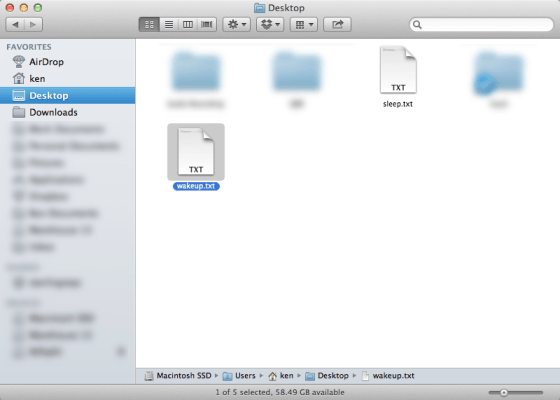
The sleep and wakeup scripts on the Desktop
Done? Great! Now, you need to move the files into your home directory as .sleep and .wakeup which SleepWatcher will execute based on the launch configurations. To do so, open up Terminal and run to following commands.
mv ~/Desktop/sleep.txt ~/.sleep
chmod a+x ~/.sleep
mv ~/Desktop/wakeup.txt ~/.wakeup
chmod a+x ~/.wakeup
And that’s all to it for method 2! Now, your MacBook would automatically unmount and eject all the external disks and mounts it back when you wake up your MacBook again!
The Pros: This scripts works really well for all disks, including USB flash drives and there’s no need to forcefully reload any drivers (Method 3) to remount any disks.
The Cons: Requires a little bit of Terminal tinkering. But most of all, prevents standby mode for the newer MacBooks.

Method 3: Using Sleepwatcher with the auto-ejecting and force remounting scripts
Disclaimer: I didn’t come up with this 3rd method and full credit goes to Jan (see the comments below) for contributing the following steps.
Firstly, remember that you’d still need to install Sleepwatcher. To do so, just follow the steps I’ve provided in method 2. Once you are done with Sleepwatcher, use the following scripts for sleep.txt and wakeup.txt.
Sleep script
Use a text editor to create the sleep.txt file, copy and paste the following two lines, and then save the file on the Desktop. The main difference here with this script is the use of eject instead of unmount.
#!/bin/sh
/usr/sbin/diskutil list | grep -e 'disk[1-9]s.*' | sed 's/.*\(disk[0-9].*\)/\1/' | xargs -I{} /usr/sbin/diskutil eject {}
And just as in method 2, if your ‘magic number‘ is disk1, then you don’t need to change that line. Otherwise, if it’s disk2, the you will need to change the grep -e ‘disk[1-9]s.‘ to grep -e ‘disk[2-9]s.‘. Essentially, you are just changing the filter of which the script uses to determine which disks to eject.
Wakeup script
This is the tricky one. It seems that with Mountain Lion, when you use the diskutil eject command, the Mac would no longer be able to remount SD cards and USB flash drives. However, external HDDs whether on USB or FireWire (and I’m assuming Thunderbolt) interfaces can still be remounted. So such, a simple command to remount like method 2 would not work.
The trick then is to force the remount process by reloading the drivers for the USB ports and SD Card reader and this can be particularly tricky as it would require you do find out which are the drivers you would need to use for the commands below.
But before that, let’s allow the driver reload command executable without needing passwords. Otherwise, it would not run the script automatically upon wakeup.
Go to terminal and enter the following command.
sudo visudo
You’ll see the following screen.

visudo
For those of you who are unfamiliar with VI (http://en.wikipedia.org/wiki/Vi), what you are looking at is basically a text-based editor that’s available in all Unix-based system. Don’t worry, you don’t have to be an expert with vi in order to do what you need to do here. Just follow the following steps and you’ll be fine. And no, the mouse will not move the cursor, this is old-school text editing! 🙂
- Press “i” to enter editing mode. You’ll see the word INSERT appear on the bottom left of the Terminal window.

Edit mode enabled
- Hit the down arrow key till you reach the User privilege specification section.

Go to the User Privilege Specification section
- At the end of that section add the following. Remember to replace [YOUR USERNAME] with your username.
[YOUR USERNAME] ALL=(ALL) NOPASSWD: /sbin/kextunload, /sbin/kextload
Not sure what your username is? Just look at the Terminal window. That’s your username right up there!

There’s your username 🙂
Beginner’s tip: Hit enter for a new line at the cursor point just below the %admin… row. Type your username. Then hit the tab key and then type in the rest of the line: ALL=(ALL) NOPASSWD: /sbin/kextunload, /sbin/kextload. You should then see the following screenshot.

Visudo edited!
- You’re done with the required edit! Now hit the Escape key (esc). This takes you out of the edit mode. You should no longer see INSERT at the bottom left of the screen.
- Type “:wq” (without the quote marks) and hit enter. This will write the file and quit vi.

:wq to save and quit
- Done! To make sure what you’ve just did works, type in the following command “sudo kextload” and it should not ask you for any password. Don’t worry, the command does nothing.

Sudo kextload don’t ask for password anymore!
Now that that’s done, Let’s move on to the wakeup script.
In this script, we still want to use the diskutil mount command. Even though the SD Cards and USB flash drives would not be automatically re-mounted, this command would still remount any external HDDs that are still connected.
For the SD cards, this can be slightly tricky. The key is to know which specific driver to reload. For the newer MacBooks that has support for SDXC, then the driver to reload is com.apple.driver.AppleSDXC. For the rest, it would be com.apple.driver.AppleUSBCardReader.
According to Apple’s support site, the following Macs supports SDXC cards.
- MacBook Pro (Early 2011 and later)
- MacBook Air (Mid 2011 and later)
However, based on feedbacks that I’ve got, the following might help you avoid the need to check which driver is the one to use.
If you’re using a MacBook Pro Retina, I’m pretty certain the driver is com.apple.driver.AppleSDXC, so you can safely skip checking for the right drivers to reload.
If you’re using a MacBook Pro that’s Mid-2010 and earlier, and a MacBook Air Early 2011 and earlier, the driver will be com.apple.driver.AppleUSBCardReader.
But the surest one way to know is to just try and unload the two drivers to see which one ‘force ejects’ your SD Card. Now before you do this, make sure you don’t have any applications that is using your SD Card or that any write activity is happening onto the SC card since the commands below it will forcefully eject your card.
Using the note from Apple as a guide, determine which of the following command you would want to try first, if it ejects your card, then that’s the driver to use. Otherwise, try the other command and see if it ejects now. Either way, you should know which is the driver to use.
Go to Terminal and enter the following command in Terminal for all MacBook Pro Retina, MacBook Pro (Early 2011 and later) and MacBook Air (Mid 2011 and later).
sudo kextunload -b com.apple.driver.AppleSDXC
OR for any other MacBooks.
sudo kextunload -b com.apple.driver.AppleUSBCardReader
Try to get the above right the first time. Once you know which one is the driver to use, do not attempt to keep testing one or the other again. In my testing for this article update, it seems to have a weird effect of not working anymore, while for Jan who contributed this method, it works for him consistently, perhaps knowing from the start that AppleSDXC is the driver to use on his MacBook Pro Retina.
I’ve also gotten feedback that the trick above does not always work, so if anyone could find a way to ascertain which drivers to use, it would be super helpful.
So here’s the required wakeup.txt script!
For AppleSDXC driver
#!/bin/sh
/usr/sbin/diskutil list | grep -e 'disk[1-9]s.*' | sed 's/.*\(disk[0-9].*\)/\1/' | xargs -I{} /usr/sbin/diskutil mount {}
sudo kextunload -b com.apple.driver.AppleSDXC; sudo kextload -b com.apple.driver.AppleSDXC
For AppleUSBCardReader driver
#!/bin/sh
/usr/sbin/diskutil list | grep -e 'disk[1-9]s.*' | sed 's/.*\(disk[0-9].*\)/\1/' | xargs -I{} /usr/sbin/diskutil mount {}
sudo kextunload -b com.apple.driver.AppleUSBCardReader; sudo kextload -b com.apple.driver.AppleUSBCardReader
Again, remember do the same with the …disk[1-9]… as you did with the sleep script if your ‘magic number‘ is disk2.
And as mentioned in method 2, if you’re using FileVault on your MacBook. You will need to delay the script from running immediately from wakeup. This is to ensure that you have already unlocked the file system before the script runs, which otherwise has the effect of ejecting the external disks. In order to do that, just add add a sleep command with the a delay time (in seconds) that is comfortable enough for you to enter your password. The example below shows a delay of 5 seconds. Add it just below the #!/bin/sh line.
Update [March 30, 2013]:
Based on a recent comment from a reader (see comments from Stewart below), I think that it would be useful to add the delay anyway. It seems that in some cases, the kext load/unload would not remount the SD Card if it ran immediately upon wakeup. So the sleep command to delay the scripts seems to help. Just add the delay time as per shown below. The script below forces a delay of 5 seconds.
#!/bin/sh
sleep 5 …
Now all you need to do is to move the files into your home directory as .sleep and .wakeup which SleepWatcher will execute based on the launch configurations. To do so, open up Terminal and run to following commands.
mv ~/Desktop/sleep.txt ~/.sleep
chmod a+x ~/.sleep
mv ~/Desktop/wakeup.txt ~/.wakeup
chmod a+x ~/.wakeup
Wait, what about USB flash drives?! Ah, as I discovered, the driver to reload is com.apple.iokit.IOUSBMassStorageClass. However, it looks like Mountian Lion OS does not allow the driver to be unloaded using the kextunload command. But since USB flash drives are easily repluggable, I’ll just leave it as that.
The Pros: This scripts will allow your MacBook to go into Standby mode.
The Cons: Requires a a lot more Terminal tinkering, including some vi editing.
Uninstalling Sleepwatcher and the scripts
If you ever wanted to uninstall and remove sleepwatcher from your MacBook, just run the following commands to delete everything you created as per the above.
sudo launchctl unload ~/Library/LaunchAgents/de.bernhard-baehr.sleepwatcher.plist
sudo rm ~/Library/LaunchAgents/de.bernhard-baehr.sleepwatcher.plist
sudo rm /usr/local/sbin/sleepwatcher
sudo rm /usr/local/share/man/man8/sleepwatcher.8
rm ~/.sleep
rm ~/.wakeup
You should now have sleepwatcher and its scripts removed.


Hi Ken,
Thanks for a great article and for the finding of those two apps.
I’m new to Mac and I would prefer to get one of the two utilities you mentioned. I’m leaning more towards the autoEJECT one as it seems to have more features. Do you have a preference for one of the two and if so, would you mind letting me know why?
Thanks
To be honest I’ve not tried both of them but between the two, I’d just go with the cheaper Jettison. They really just do the same task unless you specifically need the additional capabilities autoEJECT provides.
You can get a trial version of Jettison at the developer’s website here: http://www.stclairsoft.com/Jettison/index.html and when you decide to buy, just buy it off the Mac App Store, which I’ve put up the direct link in my article.
Thanks. At that level for me the price doesn’t matter so I went with autoEJECT.
Let me know how it works!
One not so good that I have already found with autoEJECT is the following:
– sdcard & usb stick in their respective ports
– autoEJECT set to start at start up
– shutting down the laptop
– restarting
– OS mounts the sd card and usb stick
– but autoEJECT does not list them as devices to be ejected
This might be a noob question (I’m new to Mac) but is there a way to actively put the MacBook Air 2012 (with Mountain Lion on it) to deep sleep? Otherwise testing this app will take too long, if I have to put it to sleep and then wait for it to go to deep sleep.
Once I know how to send MBA into deep sleep mode I’ll test how the app deals with that. And also what does it do if itunes had something on pause from the memory stick at the time of going to sleep/deep sleep.
What I’ll also test over night is how much battery is actually consumed if the laptop only goes into sleep mode (never into deep sleep). Maybe it’s not such a problem after all and I don’t need to bother with any additional app.
I plan to leave the nifty with microSD card permanently there, so would like to see that.
Sorry about the split comment, the page doesn’t let me post a longer comment. If it’s longer the post a comment button disappears somewhere down. I’ve tried it on Chrome, Firefox, Safari. Weird this
additional to post 5:
So if I want to just close the lid and go and have autoEJECT do its thing I need to take the sd card and memory stick out and back in.
I don’t quite understand why autoEJECT doesn’t detect them as being mounted after restart. I’ve emailed app support but who knows when they’ll come back.
I’m actually starting to research on this manual force to deep sleep myself as well. Initial finding is that this is indeed possible. Deep sleep is actually the equivalent of Windows’ hibernate mode. And I’m guessing the reason Apple does not activate deep sleep when devices are plugged in is so that in the case that someone does unplug the devices when the Mac is in deep sleep, then when it wakes up, there’s a ‘mismatch’ in the hardware,
But in our case with the Nifty drive this would not be a problem of course. So a manual deep sleep activation would work fine.
I’ll find out more about this and will post an update or as another blog post. And I’ll surely update the kickstarter comments too.
Regarding autoEject not detecting the SD Card, I’m guessing that perhaps some system level information has changed from Lion to Mountain Lion and thus the app missing something, this might probably be the case.
And since my script is able to pick up the SD card, I’m sure the app can be updated to detect it as an electable device too.
Let’s see if the developer replies soon. I saw a comment in AppStore saying that the developer was quite responsive.
Ken,
Thanks again for your work on this issue. The developer of autoEJECT did indeed respond straight away and confirmed that the behaviour of the app after shutdown is as I described. I have forwarded to them a link to this page.
The problem that I ran into when researching the deep sleep mode is that Mountain Lion is so new that most posts about the issue refer to previous versions of the OS. Maybe nothing changed from previous OS on this matter but I’d like to know more before changing the power saving settings for the Mac.
Then there is the fact that apparently you have ‘sleep’, ‘safe sleep’ and ‘deep sleep’. Need to understand better what does safe sleep do vs deep sleep both in terms of HDD use and in terms of how SD, USB things interfere with either.
Then some people say that deep sleep is better disabled altogether because it’s main disadvantage (writing the contents of the RAM to HDD every time it happens) far outweighs the benefit (conserving battery). This sounds logical considering I have 8GB of RAM.
i use the SSD in the Macbook Air solely for OS, application and documents. Photos, videos, downloads, etc are stored at the moment on an SD card and when Nifty arrives they will be on the microSd card. This is to avoid excessive overwriting on the SSD because this is known to cause the SSD to slow down over time (plenty of detailed articles on anandtech.com for this).
The fact that Apple haven’t included deep sleep (hybernation/standby?) as a power saving option (for Macbook Air at least, don’t know about MBP) also makes me wonder about deep sleep.
So more reading necessary.
afterthought: Anand Lal Shimpi, the editor of anandtech.com would be the person to ask about this deep sleep issue on Macs as he’s the person that always writes the reviews about Macs & SSD and he’s the absolute guru in anything to do with hard drives (but especially SSD).
Yes. I do read up his articles a lot. Probably some of the few legit review sites left on the planet. 🙂 And you’re right with your assessment. With the SSD, hibernating often may be good in the long run. Plus, the regular sleep is actually pretty good IMHO in its power consumption, or lack thereof.
But still apps like autoEJECT is useful in handling those external hard drives.
Sidenote: I do have a friend who knows Anand personally and he runs the site TechARP. I used to be a tech reviewer for him too back then in the earlier days when I had free time in my hands!
Sorry for reviving old posts, but I have just done this to try and get my SD Card (using a Nifty MiniDrive) to unmount on sleep and remount on wake, however, when I close my lid of my computer (Retina MBP), and open again, the disks never seem to have been unmounted?
Is there anyway I can check the functionality of this and remove all the files if I can’t get it to work?
Thanks
Stewart
Actually, I have now restarted my computer and tried again and the USB Hard Drives seem to un-mount and remount ok, however, the SD Card doesn’t?
Also, where can I view and edit the .sleep and .wakeup files? (I have enabled hidden files – but still can’t find them)?
Thanks
Stewart
The .sleep and .wakeup files are at your user home folder. Could you try to manually execute the sleep and wakeup script to see if it works? You can do this with the following commands. Open up terminal and run the following commands
cd ~
cp .sleep sleep.sh
cp .wakeup wakeup.sh
chmod +x sleep.sh
chmod +x wakeup.sh
To execute the sleep script run the following command with the SD card in the slot.
./sleep
Then see if it un-mounts the card.
To execute the wakeup script, similar run the following
./wakeup
Then see if it remounts the card.
BTW, your script should be the following “… grep -e ‘disk[1-9]s.*’ …” since the MBP Retina should only have one built-in SSD disk unlike my machine which had two SSDs.
Hi
Thanks for the reply.
I figured out that I should have had [1-9] after posting (when I was offline and couldn’t reply). It all seems to work great now! Thanks for all the help!!
Quick question: Will this continue to work / cause any problems when Apple release a new version of OSX? If the above problems are possible (I know that we won’t know until it comes out) is there an easy way to remove this from my System? Thanks, Stewart
I don’t think there should be any problem with this even when you install new updates to the OS X. I’ve updated my machine a couple of times and the script still runs.
And yes, you can definitely remove it if you need to. Basically you’l just need to delete off the files you created and added to the system.
Perfect – thanks for the help!
Stewart
Ok, new problem (sorry about this).
I was away from my computer for a few hours today, I closed the lid and left it for a few hours, when I came back and opened it, the SD Card didn’t remount?
Could this be in a “deep sleep” mode? I needed to physically remove my SD Card and re-insert it so it would be mounted again.
Thanks again for all the help.
Stewart
How about SMB drives, that are mounted with user/pass from keychain. Will this work? One of the apps mentioned there, i bought it, and while the guys try to figure it out, it does not work. Will this trick work on a mounted SMB drive (linux machine) with user/pass?
No. The script reads from the list that is returned from diskutil. So it does not cater for network mounted drives. Let me take a look into this. But the trouble with this is that if you put a wake script that tries to mount network drives every time, even when you’re not within the required network, you might get error messages. Perhaps just a sleep script to unmount? Let me figure this out and see. But hey, this is a wonderful suggestion indeed.
Update: Got it. Just need to add the following command to the .sleep script
“umount -A -t smbfs”
FYI: Basically -t denotes that only smbfs type disks will be unmounted and the -A command is used so that all the currently mounted file systems except the root are unmounted, just in case. -a (small a) unmounts ALL disks.
Hi Ken, I need your help.
I am not new to OS X, but I cannot get this working.
1) sleepwatcher is running (checked via activity monitor)
2) when I execute .sleep and .wakeup scripts manually, they work perfectly
But when I actually close the lid and open it aprox. minute later, the SD card is not automatically remounted and even “diskutil list” does not list it. It seems like if the card was getting ejected instead of unmounted.
Any idea what may be wrong?
Thank you in advance,
Jan
Hmm. I might want to diagnose further. If the scripts works fine manually, then it should do the same when sleepwatcher runs it. I’d probably pipe the output of the script to a file to see what happens when the script runs.
/usr/sbin/diskutil list | grep -e ‘disk[1-9]s.*’ | sed ‘s/.*\(disk[0-9].*\)/\1/’ | xargs -I{} /usr/sbin/diskutil unmount {} >> sleep.log
/usr/sbin/diskutil list | grep -e ‘disk[1-9]s.*’ | sed ‘s/.*\(disk[0-9].*\)/\1/’ | xargs -I{} /usr/sbin/diskutil mount {} >> wake.log
Then see what those log files says.
Do you run anything that would potentially eject the SD card automatically?
Thank you for your prompt reply.
Sadly, it gets even weirder…
Before trying your scripts, I had installed Mac App Store version of Jettison. Then I found out that it is not able to remount SD cards (because it is actually ejecting the disks and once you eject SD card, you have to physically re-insert it to the slot). I uninstalled Jettison before installing sleepwatcher, but it seems like some agent kept running on the background. I really don’t know how could that happen.
So I deleted some preferences files related to Jettison from Library (wtf, why didn’t OS X delete this garbage with the app itself) and now the SD card is mounted when I wake up my macbook.
BUT, the problem is that most likely, the .sleep and .wakeup scripts are not being executed automatically – no log files are being created. When I run the scripts manually, they create log file. So thanks to your idea with logs, we were able to pinpoint the problem – but why the hell are they not being launched properly?? Permissions and paths to them are set correctly 🙁
It seems that my script should include the full path where you want to log the files, i.e:-
/usr/sbin/diskutil list | grep -e ‘disk[1-9]s.*’ | sed ‘s/.*\(disk[0-9].*\)/\1/’ | xargs -I{} /usr/sbin/diskutil unmount {} >> ~/sleep.log
Because the sleepwatcher process is running in /usr/local/sbin location, the script may have tried to be written there.
You should see the log file being created now.
Sorry for the probably stupid answer… Any idea how to remove sleepwalker from my system?
Not a stupid question at all. I’ve updated the post on how to remove sleepwatcher if you decide not to use it anymore.
Great, thank you. I installed your script yesterday evening, as explained on your page, but it´s not working for me, I´m afraid… I am using a nifty mini drive, too, and my MacBook Air isn´t hibernate any longer since I have a SD card permanently inserted. With Sleepwatcher and the script still the same…
I’ve commented to another reader on this as well, your script should be the following “… grep -e ‘disk[1-9]s.*’ …” since the MBP Retina should only have one built-in SSD disk unlike my machine which had two SSDs.
#!/bin/sh

/usr/sbin/diskutil list | grep -e ‘disk[1-9]s.*’ | sed ‘s/.*\(disk[0-9].*\)/\1/’ | xargs -I{} /usr/sbin/diskutil mount {}
And to further test the .sleep and .wakeup, you could try to manually execute the sleep and wakeup script to see if it works. You can do this by opening up terminal and run the following commands
cd ~

cp .sleep sleep.sh

cp .wakeup wakeup.sh

chmod +x sleep.sh

chmod +x wakeup.sh
To execute the sleep script run the following command with the SD card in the slot.
./sleep./sleep.sh (oops just realised my mistake)Then see if it un-mounts the card.
To execute the wakeup script, similar run the following
./wakeup./wakeup.shThen see if it remounts the card.
I`ll give it a try, but I´m at work at the moment. The problem is, the script seems to work fine (I used 1-9 by the way), but my Air won´t deep sleep, even while the card is unmounted. And thank you for your fast reply 🙂
Few more details.¨
a.
I personally have Retina Macbook and even though it has just one SSD, it is somehow mapped as both disk0 and disk1. So ejecting disk2x and higher works perfectly fine.
b. weird thing happen…
when I execute .sleep manually, then sleep and wake the macbook and then execute .wakeup manually, everything works perfectly. but when I let sleepwatcher do the job, the SD card is for some reason ejected (not unmounted) and after the wakeup cannot be remounted by .wakeup…
weird, but I gave up for a few days. could’t stand any more illogical failures for now 🙂
Thanks for the feedback. Interesting note on the disk mapping. I better update my article to point that out.
As for the problem with the script, sleepwatcher would not do anything different than then script when run manually. So my suspicion is there’s some other process that is ejecting the SD Card.
Ken, do you have an idea, if a MacBook Air should went to deep sleep, when an inserted SD card is unmounted? Otherwise I could stop searching for a solution… 😉
Yeah, it seems that way… The funny thing is that when I unload sleepwatcher from launchd, it does not get ejected at all.. I will tinker with it when I get from work today. Also, I will post raw diskutil list output for the retina macbook.
Now that’s really odd indeed. What does the output of the log says when the sleep script is executed by sleepwatcher?
And thanks in advance for the diskutil list output for the MacBook Pro Retina. Btw, could I ask if it’s the 15″ or 13″ one? Just so that other users can check if it’s the same.
It should go into deep sleep. As I noted in my article, I’ve noticed that when the SD Card is unmounted, pmset log shows that the PreventUserIdleSleep assertion is released.
18/8/12 10:13:01 AM GMT+ Assertions PID 18(powerd) Released ExternalMedia "com.apple.powermanagement.externalmediamounted" 00:00:27 id:0x900001bde Aggregate:0x4018/8/12 10:13:07 AM GMT+ Assertions PID 53181(diskmanagementd) Released PreventUserIdleSystemSleep "com.apple.diskmanagementd" 00:00:18 id:0x100001be0 Aggregate:0x40
Thank you. Due to the fact that I have my mini drive at home, I will install Sleepwatcher again when I´m back from work. I am excited if I can get my Air to deep sleep. I appreciate your help,I will give feedback when I am back home.
It is the low-end 15” model with 256GB SSD.
Also, when I put the logging part into the script and let sleepwatcher handle it’s thing, the sleep.log contains something among the line of “disk2s1 Nifty has been succesfully unmounted”. on the other hand, wakeup.log gets created as well, but remains empty. At that point, the SD card is already ejected and cannot be remounted without physically reinserting it to the reader.
Okay, I just tested it with an usb stick connected to my Air since I can´t wait until I am at home. When I enter ./sleep in terminal, I get the message “-bash: ./sleep: No such file or directory” I also entered all the commands,
cd ~
cp .sleep sleep.sh
cp .wakeup wakeup.sh
chmod +x sleep.sh
chmod +x wakeup.sh
before. What am I doing wrong?
Just take the script file and drag&drop it onto Terminal.app in the dock. That will execure it.
You need to use the full name of the executable script.
./sleep.shOkay, tested& USB stick unmounts and is remounting. But when I close the lid of my book, still no change, no deep sleep mode…
could you run the following command and tell me what it says?
pmset -g
Also the following command and just post the last 10 lines. Do this right after you close the lid, wait for 10-15 seconds (deep sleep only activates after 10 secs I believe) then open the lid, and run the command below.
pmset -g log
This should tell me what happened.
As far as I know, deep sleep does NOT activate after 10 seconds.
When translated to the Windows terminology, light sleep = stand by, deep sleep = hibernate. Every time you open the lid of your macbook and the computer is instantly ready, it was just light sleeping, which means that HDD/SDD was off and there was just little power going to the RAM and other basic components to prevent data loss and to be able to wake up instantly at any time.
When your mac is in the light sleep for few hours, the OS X smartly decides to move to deep sleep, write all your RAM data to HDD/SDD and switch the power off completely. That is why it takes longer to wake from deep sleep.
As I said, to my knowledge the deep sleep should activate after several hours, not seconds.
Exactly. At Mac OS, Deep sleep standard is after 70 Minutes, 4200 sec. I set for testing reasons my standbydelay to 2 Minutes.
Here is what pmset – g said:
Currently in use:
standbydelay 120
standby 1
halfdim 1
hibernatefile /var/vm/sleepimage
darkwakes 0
disksleep 10
sleep 30
hibernatemode 3
ttyskeepawake 1
displaysleep 10
acwake 0
lidwake 1
This after two minutes, when deep sleep should happen, result of pmset -g log:
0.03.13 17:09:01 MEZ Assertions PID 72(apsd) TimedOut ApplePushServiceTask “com.apple.apsd-waitingformessages-push.apple.com” 00:00:20 id:0xc00000141 Aggregate:0x100240
20.03.13 17:09:01 MEZ Assertions Summary- Aggregate:0x100240 Using Batt
20.03.13 17:09:22 MEZ Assertions PID 346(helpd) Created BackgroundTask “com.apple.helpd.sdmbuilding” 00:00:07 id:0xc000001b6 Aggregate:0x100242
20.03.13 17:09:25 MEZ Assertions PID 417(AddressBookSour) Created PreventUserIdleSystemSleep “Address Book Source Sync” 00:00:05 id:0x1000001d3 Aggregate:0x100242
20.03.13 17:09:50 MEZ Assertions PID 417(AddressBookSour) Released PreventUserIdleSystemSleep “Address Book Source Sync” 00:00:30 id:0x1000001d3 Aggregate:0x100240
Sleep/Wakes since boot:4 Dark Wake Count in this sleep cycle:0
Time stamp Domain Message Duration Delay
========== ====== ======= ======== =====
UUID: 03019CE8-BBF8-4543-80B1-BF276FB4144C
20.03.13 17:15:46 MEZ Sleep Clamshell Sleep Sleep: Using BATT (Charge:36%) 142 secs
20.03.13 17:15:46 MEZ Assertions PID 72(apsd) Released ApplePushServiceTask “com.apple.apsd-waitingformessages-push.apple.com” 00:07:05 id:0xc00000141 Aggregate:0x100240
20.03.13 17:15:46 MEZ WakeRequests Clients requested wake events: None
20.03.13 17:18:08 MEZ Wake Wake due to EC.LidOpen/Lid Open: Using BATT (Charge:36%)
20.03.13 17:18:08 MEZ SlowResponse PMConnection: Response from AirPort configd plug-in is slow (powercaps:0x1f) 284 ms
20.03.13 17:18:08 MEZ SlowResponse PMConnection: Response from IPConfiguration is slow (powercaps:0x1f) 285 ms
Thanks Jan, I stand corrected. Its hard for me to find this out myself since I’m still using a mid-2010 MBP which does not go into deep sleep, so I don’t see the deep sleep time in pmset -g.
You are right. It looks like the autopoweroffdelay is set to 14400 seconds by default. That’s 4 hours!
Update: Looks like I’m again not complete in my understanding on how deep sleep works. Frank is correct with the standbydelay which should have gotten his Macbook to go into hibernate mode already.
Hmm the logs don’t show enough to see what happened in relation with the external media.
Please try one more thing. Run the following command to see what the existing assertions are when plug in your USB media.
pmset -g assertions
You should see something like the following:-
Assertion status system-wide:
PreventUserIdleDisplaySleep 0
PreventSystemSleep 0
PreventUserIdleSystemSleep 0
ExternalMedia 1
DisableLowPowerBatteryWarnings 0
UserIsActive 0
ApplePushServiceTask 0
BackgroundTask 0
The run the sleep script manually and then rerun the pmset -g assertions script again and let’s see if it makes any difference.
Okay, I will do that at home, will took a little bit until I am at home. I will post the result here later.
diskutil on Retina Macbook: http://imgur.com/a/owS3G
Ok, so I done some more testing and this is really strange.
I tried 4 scenarios:
1) run both scripts manually before and after sleep – worked perfectly
2) let sleepwatcher run the scripts – after wakeup, the SD card was ejected
in case 3), I edited .sleep to contain: echo “hi” >> ~/sleep.log, manually unmounted the volume and let the sleepwatcher execute both scripts – after wakeup, the SD card was again ejected
in case 4) I switched it so .sleep was actually unmounting the Volume while .wakeup was echoing “ho” to the wakeup.log. after the wakeup, I manually run the mounting command and it worked.
by doing these 4 tests I found out that the cause of the problem is the .wakeup script being executed by sleepwatcher. but I have no idea why. basically when .wakeup contains “diskutil mount disk2s1 >> ~/wakeup.log
“, the SD card gets ejected – but when I run that command manually, the card gets mounted…
Ok, I finally nailed it.
I think that what I found should be mentioned in the article.
The reason for the .wakeup script not mounting the Volume and ejecting it instead is most likely that I use Password on my account and I have FileVault turned on. The .wakeup script runs right after the wakeup, which means that it runs before I enter my password and unlock the filesystem via FileVault.
I modified the .wakeup script to contain following: sleep 5; diskutil mount disk2s1
That way, it waits 5 seconds after the wakeup before it tries to mount the Volume. If I manage to log-in during that 5 seconds, than the script works. If it takes me longer than 5 seconds to enter the password, then the script fails again and you have to physically re-insert the SD card to be able to mount it.
So, basically you should mention in the article that when you use FileVault, you need to add “sleep” command to the mounting script and choose the delay interval long enough, to be able to comfortably enter your password.
Thank you for your assistance, Ken 🙂
Awesome! I’ll update my article accordingly. Thanks for sharing your experience too, it’s been helpful to me as well.
Ken, sorry for the late answer, was too tired yesterday evening after work…
Thank you for your support, but I´m afraid, it´s not possible to set a MBAir/ Retina to Hibernate Mode while a SD Card is inserted or an external volume is connected. It seems that any kext is responsible for putting the Book to Deep Sleep, and I dont´t believe that it is possible to change that behavior. Your script is awesome to mount/unmount external volumes, and I think it´s the best free solution. But sadly it´s not solving my problem… Cheers, Frank
I will personally verify this when I get back to my macbook from work. If it will be deep sleeping (which it hopefully will), then it is possible. Another option would be to unload kext responsible for mounting USB devices and load it back after wakeup…
Well, I won’t speculate until I check whether or not my macbook goes to deep sleep.
I will personally verify this when I get back to my macbook from work. If it will be deep sleeping (which it hopefully will), then it is possible. Another option would be to unload kext responsible for mounting USB devices and load it back after wakeup…
Well, I won’t speculate until I check whether or not my macbook goes to deep sleep.
Also Ken, the nesting and ordering of comments on this site is pretty confusing 🙁
Sadly frankspage is right. Just unmounting the SD card does not allow Macbook to go into deep sleep. I think I found an ultimate solution – I will let you know tomorrow morning if the thing worked.
Thanks Jan for checking. Let me know if your solution works. And I’ve removed the nesting of comments. Hopefully its less confusing now.
Yes Ken, the comments are perfect now 🙂 Just one more thing – is there a way for visitors to use some basic BB Codes like [pre] or [code]?
As for the solution..
.sleep:
#!/bin/sh
diskutil eject “Nifty”
.wakeup:
#!/bin/sh
sleep 15; sudo kextunload -b com.apple.driver.AppleSDXC; sudo kextload -b com.apple.driver.AppleSDXC
In the sleep script, you have to eject the SD card. If you just unmount it, the Macbook won’t go into deep sleep. What you have to do in wakeup script in order to get SD card re-mounted again is unloading SD card reader driver (kext) and loading it again. On the kextload OS X automatically checks if any card is present in the card reader and if yes, it mounts it. Same as with the old umounting script, if you use FileVault, you have to add “sleep x” long enough to be able to log in before reloading kexts.
There are 2 more important things:
1) You have to edit sudoers table and include kextload and kextunload as commands, which you can execute under sudo without entering the password. Without that, the wakeup script would fail as it would hang on the password prompt.
To do that, enter
sudo visudo
into the Terminal. Once in the vi editor, press: “i” to enter editing mode. When done, enter “:wq” to save changes and exit.
In the file find this section “USER Privilege Specification” and at the end of that section add this row:
[YOUR USERNAME] ALL=(ALL) NOPASSWD: /sbin/kextunload, /sbin/kextload
As an example, this is what my sudoers looks like:
# User privilege specification
root ALL=(ALL) ALL
%admin ALL=(ALL) ALL
eSko ALL=(ALL) NOPASSWD: /sbin/kextunload, /sbin/kextload
Verify that it works – try sudo kextload in Terminal and confirm that it does not ask for any password.
2) Name of the kext responsible for SD reader will be different if different versions of Macbooks.
There are 2 ways how to find yours:
a) Go to /System/Library/Extensions/ and look for file with “SD” in the name. Mine is AppleSDXC.kext
b) In the Terminal enter “kextstat | grep SD”. That command will go thru all loaded drivers (kexts) and list only those which have “SD” in their name.
Once you’ve got the name of the kext responsible for your specific integrated card reader, modify my .wakeup script accordingly.
Hope this informations helps, as I can confirm for 100% that my macbook goes into deep sleep with SD card inserted when I use this method as opposed to just unmounting the Volume 🙂
Awesome. I’ll update the article and give you the full credit for the tip!
Jan, Could I check with you if you are using Power Nap with your MacBook? It seems that if Power Nap is enabled, then standby mode will be disabled. Would like to check if that’s true. https://support.apple.com/kb/HT4392
Ken,
I am using Power Nap just while connected to the Power Adapter. You are right with the link and it makes sense that to be able to check for updates and download e-mails, Macbook cannot be in Deep Sleep (=Standby).
When I run on battery, I have Power Nap turned off to allow Macbook switching to Deep Sleep.
Thanks. One more thing to check with you. Just to confirm since I don’t have a newer MacBook that supports SDXC. Could you use the following command to force remount the SD Card?
sudo kextunload -b com.apple.driver.AppleUSBCardReader; sudo kextload -b com.apple.driver.AppleUSBCardReader
I wanted to see if the SD card reader is universally loaded with the AppleUSBCardReader driver even on the newer MacBooks with the SDXC slots. For me, I had both drivers loaded but only the AppleUSBCardReader reload worked.
Nope, that does not work on Retina Macbook. You have to find the right kext for your device.
Ok. Thanks for the confirmation. 😀 I’m putting together a new revamp of the article which will address ALL kinds of drives, USB Stick, external HDD (Firewire, USB, and hopefully Thunderbolt too) and SD Cards. With full credits to you for the full proof script!
Haha you’re welcome. You are the one who helped me to setup sleepwatcher properly in the first place. I am really happy that we solved the mystery. It is really hard to believe that nobody on the Internet solved this yet (or at least I wasn’t able to find it).
Let me know if you happen to have any more questions.
Bah. Looks like there’s no way to force auto remount of USB disks. USB external HDDs are fine since ML can still ‘see’ ejected HDDs. It seems that there’s no way we can reload the com.apple.iokit.IOUSBMassStorageClass driver which is needed to remount USB disks. Oh well, since those are easily re-pluggable, I’ll leave it as that.
Thanks again and I seriously need to consider getting myself updated with a new MBP Retina 🙂
Jan, Please help me check one thing. Can you try to repeatedly execute the eject & kext reload commands manuallly and see if it works everytime? I can’t see to get my script working everytime during my testing while verifying it for my article updates.
I tried it 10 times in a row and it worked every time. Maybe you could use the >> script.log method again to find out what’s the problem.
Also, I tweaked my .wakeup script a little bit and added “diskutil eject “Nifty”” between the sleep and kextunload command. Reason behind it is that when I do not use Macbook for 10 minutes and it goes to sleep (without closing the lid), the .sleep script is not executed for some reason, so the SD card is not unmounted and later when I press any key and wake up the Macbook, the .wakeup script gets executed and throws the “The disk was not ejected properly” error – obviously, because it unloaded driver for still mounted Volume. So this way it always ejects the SD card before unloading drivers.
My trouble comes from trying to determine which drivers to use. The first time seems fine. As in executing
sudo kextunload -b com.apple.driver.AppleSDXC
Then
sudo kextunload -b com.apple.driver.AppleUSBCardReader
To determine which one would forcefully eject the SD Card.
But my subsequent attempt to reverify those steps fails. both drivers unload sometimes gives me the following error.
(kernel) Kext com.apple.driver.AppleUSBCardReader not found for unload request.
Failed to unload com.apple.driver.AppleUSBCardReader – (libkern/kext) not found.
And sometimes, it can reloads successfully and remounts my SD Card. But most times, it would not do anything.
Try unloading and loading it not by identifier, but using the file name. I don’t think it will make much difference, but you never know 🙂
sudo kextunload /System/Library/Extensions/AppleSDXC.kext
sudo kextload /System/Library/Extensions/AppleSDXC.kext
(when using file name, the “-b” is not being used)
Don’t seem to work. And looking at the System Information, it says that I don’t have a card reader installed! And here i am reading from my SD Card. LOL. Let me restart my Mac and see what happens. Either way, I’ve updated my article. Please read through and let me know if there’s anything wrong with it. Thanks!
Hey guys, sorry for not being here the last days. I was totally excited that Jan found a solution, but when I tried to unload the kext, I only got an error message “(kernel) Kext com.apple.driver.AppleSDXC not found for unload request.
Failed to unload com.apple.driver.AppleSDXC – (libkern/kext) not found.”
Any ideas? It is 2011 MacBook Air…
frank, try using one of 2 ways to get your correct kext name. I believe that your macbook air does not have SDXC reader.
entering “kextstat | grep SD” into Terminal should give you proper kext name for your reader. let us know if that worked
Hi Jan, thanks for your response. Just entered kextstat | grep SD in Terminal, I received… nothing. No message, no information.
Short update: tried the other one, USBCardReader, got an OS error message, volume was not ejected properly, no I have no longer a SD Reader in my system profiler…
Just rebooted my book, now my card reader is here again 😉
So I would like to use method 3 as described, entered all necessary commands in terminal, including vi editing, but still my book won´t went to deep sleep. I´m getting desperate…
Jan, could you help me with my sleep and wake scripts? I just want to eject and remount my Nifty Mini Drive to get my Air to Deep Sleep. I used Ken´s wake and sleep scripts, but still not successful…
Hi frankspage, it seems that I’ve missed out the first line in the wakeup script for method 3. “#!/bin/sh”. That’s what happens when one goes editing articles at 3am in the morning 🙂 Please and see if that’s the problem.
Also, please try just using the following for the wakeup script and see if it works:-
#!/bin/sh
/usr/sbin/diskutil list | grep -e ‘disk[1-9]s.*’ | sed ‘s/.*\(disk[0-9].*\)/\1/’ | xargs -I{} /usr/sbin/diskutil mount {}
sudo kextunload -b com.apple.driver.AppleUSBCardReader; sudo kextload -b com.apple.driver.AppleUSBCardReader
I suspect that your MacBook Air uses AppleUSBCardReader for the SD card reader driver.
The mounting part serves no purpose in the wakeup script.
I will have access to MBA on Monday, so I will look into it if you won’t solve it until then.
Jan. I still put it in to cater for the ejected external HDDs. But you’re right. It is not for the ejected SD cards
Ken, Jan, thank you so much for your help. It seems, that the sleep-script is part of my problem. When I enter distill eject “MiniDrive”manually, my SD is ejected, and when I enter sudo kextunload -b com.apple.driver.AppleUSBCardReader; sudo kextload -b com.apple.driver.AppleUSBCardReader, I can mount it again. But with the sleep script I used by now, it seems that the NIfty Mini Drive is not ejected, it is already there, when I open the lid of my Air…
What exactly is in your .sleep script?
Also, try adding “>> ~/sleep.log” at the end of the script and see if the log file gets created. To me it seems more like sleepwatcher issues than the script itself…
I just used the #!/bin/sh
/usr/sbin/diskutil list | grep -e ‘disk[1-9]s.*’ | sed ‘s/.*\(disk[0-9].*\)/\1/’ | xargs -I{} /usr/sbin/diskutil unmount {} from method 3, Ken mentioned.
Don’t use this one. Even if it worked and the card would get unmounted, that is not enough to meet requirements for Deep Sleep. It has to be ejected, not unmounted.
Try using this one:
#!/bin/sh
diskutil eject “Nifty”
and change “Nifty” to “NameOfYourSDcard”. First try that command in Terminal to be sure you’ve got the correct name and it works. Then physically reinsert the SD card and try to sleep the macbook.
I tried that yesterday evening manually in Terminal, itworks, my Mini Drive get´s ejected. But it seems that my Book still not hibernating.
When the SD card is ejected, it no longer prevents Hibernation. Go check Power options in System Preferences a check whether or not do you have Power Nap turned on. If you do, the Power Nap is in fact preventing the Deep Sleep – not the SD card.
I only use PowerNap when my Power Supply is connected. It´s really weird, every time, I used diskutil eject, my mini drive get´s ejected. When I close the lid of my book and reopen it, my mini drive is already mounted on the desktop, and my book won´t hibernate.
It seems to me like there is a problem with sleepwatcher. Try adding that logging part to the script. If the log file won’t get created, then the script is not being executed by sleepwatcher and the best thing would be removing it from your system and installing it again.
Okay. Do I only add ~/sleep.log? And, if there would be a log, where can I find it? Sorry for these stupid questions…
Frankspage, it would be as follows:-
#!/bin/sh
diskutil eject “Nifty” >> ~/sleep.log
Doing so will write the log in your home directory.
Thank you. I will change my script and post the result.
Okay. After adding sleep.log to the sleep script, and closing the lid of my book, and waking it up again, I have no log file in my home folder. How can I ensure, that sleepwalker is working properly? I have a process in my activity monitor called sleepwatcher…
I would suggest following Ken’s guide on how to remove sleepwatcher and then closely follow step-by-step guide how to install it again. That would be your best shot in my opinion.
I will give it a try…
Okay, I removed sleepwalker. What would you both suggest a my sleep script? Just #!/bin/sh
diskutil eject “Mini Drive” and that´s it?
Yes, I would suggest keeping it as simple as possible.
Jan, amazing. Now, after a restart, it seems to work partially. When I set my book to sleep, I got an error message, Volume wasn´t ejected properly, when I open the lid again. My first success, since I work on it 😉 No I only have to get away these message…
Oh, and I got a sleep log, for the first time! But it is empty…
Ok, so it seems like there is a little problem with the .sleep script you are using.
.wakeup apparently works perfectly, because it reloads the driver which causes the error message. the problem is that the SD card is not getting ejected on sleep. Could you try copying that diskutil eject command and launching it manually from Terminal? The fact that log file gets created show that the script is being executed, but even though it does not work perfectly. I would suggest running “diskutil list” in Terminal and verify if you have correct name of the SD card in the script.
/dev/disk2
#: TYPE NAME SIZE IDENTIFIER
0: FDisk_partition_scheme *63.9 GB disk2
1: Apple_HFS Nifty 63.8 GB disk2s1
translates to
diskutil eject “Nifty”
But nevertheless, it looks very promising.. Now we confirmed that sleepwatcher is executing both scripts and that .wakeup script is 100% working as intended 🙂 Let’s solve this last bit!
Great, we are on the right way! 🙂 So this is the result of running diskutil list:
Franks-MacBook-Air:~ frank$ diskutil list
/dev/disk0
#: TYPE NAME SIZE IDENTIFIER
0: GUID_partition_scheme *251.0 GB disk0
1: EFI 209.7 MB disk0s1
2: Apple_HFS Macintosh HD 250.0 GB disk0s2
3: Apple_Boot Recovery HD 784.2 MB disk0s3
/dev/disk1
#: TYPE NAME SIZE IDENTIFIER
0: FDisk_partition_scheme *31.4 GB disk1
1: Apple_HFS Mini Drive 31.4 GB disk1s1
Oh, and when I run diskutil eject “Mini Drive” from the terminal, it ejects my Mini Drive.
Perfect.
Verify that .sleep contains only following:
#!/bin/sh
diskutil eject “Mini Drive” >> ~/sleep.log
Copy and paste it from here as there may be problem with quotation marks you used.
Okay. To do that, is it okay, to show hidden files in my home folder, erase the existing sleep file and create a new one with text wrangler?
sure.. but don’t forget to set access rights:
mv ~/Desktop/sleep.txt ~/.sleep
chmod a+x ~/.sleep
once done, the best way to test it would be drag&drop the .sleep file onto Terminal icon in the dock, which will execute the command. If it ejects the SD card, perfect – go and drop the .wakeup script on the Terminal icon. If the SD card gets remounted, even better. Now try closing the lid and we’ll see if it goes as smooth as before. Good luck.
Thank you… Now, when I drop the script on Terminal icon in my Dock, I got a message: Franks-MacBook-Air:~ frank$ /Users/frank/.sleep ; exit;
Unable to find disk for “Mini
logout
Why? I named my Mini Drive correctly in the script.
Alright. Lets make final change to the script:
#!/bin/sh
diskutil eject “Mini\ Drive” >> ~/sleep.log
The “\” should tell OS X to treat it as a part of the card’s name and not like another part of the command.
and by “it” I mean the space.
Still the same…
Franks-MacBook-Air:~ frank$ /Users/frank/.sleep ; exit;
Unable to find disk for “Mini Drive”
logout
I am completely clueless.
Weird…
#!/bin/sh
diskutil eject disk1 >> ~/sleep.log
Should work.
Oh my god, it´s working!!! My MiniDrive is ejected when using the script as you mentioned! And when dropping the wakeup script on Terminal, it is mounted again. The only thing is, there is a Time Machine Backup running at the moment, when I use the wakeupscript, Igot the message
Franks-MacBook-Air:~ frank$ /Users/frank/.wakeup ; exit;
Volume on disk5s1 failed to mount
Volume Time Machine-Backups on disk5s2 mounted
logout
in my Terminal. Cause for concern?
What exactly do you have in your .wakeup script?
Damn, again, when I close the lid and open it again, I received again the message, volume was not ejected properly.
Here is my wakeup-script:
#!/bin/sh
/usr/sbin/diskutil list | grep -e ‘disk[1-9]s.*’ | sed ‘s/.*\(disk[0-9].*\)/\1/’ | xargs -I{} /usr/sbin/diskutil mount {}
sudo kextunload -b com.apple.driver.AppleUSBCardReader; sudo kextload -b com.apple.driver.AppleUSBCardReader
And my System Profiler contains no Apple-internal Card Reader. And I thought we had a solution. 🙁
Ok, so the wakeup script is trying to mount disks which were not unmounted previously. Again, when we want to work just with the Mini drive, it is too complex.
Here is your final set of scripts:
.sleep
#!/bin/sh
diskutil eject disk1
.wakeup
#!/bin/sh
diskutil eject disk1; sudo kextunload -b com.apple.driver.AppleUSBCardReader; sudo kextload -b com.apple.driver.AppleUSBCardReader
Let me know if that worked without errors and more importantly if it worked when you closed the lid 😉
When you drop the .wakeup script onto Terminal icon, there will probably be one error saying “Unable to find disk for Mini Drive”, but that is OK. There are reasons why I include the eject command also in the .wakeup script which I explained earlier in the comments.
try restarting the computer after you updated the scripts and let me know
Almost there… When I drop both scripts on the terminal icon, it works like a charm, without errors. When I manually put my book to sleep, by clicking on the apple menu, I got the volume not ejected properly message. But when I close the lid of my book, everything seems fine and works without errors…
Well, I think that there is a bug or maybe a technical limitation in sleepwatcher, because it is exactly the same on my Macbook. When it goes to sleep by itself or when I use the Sleep option from Apple menu, the .sleep script is not executed. That is why I put the eject command also into the .wakeup script. So it is really strange that you get that message when in fact the script is ejecting the disk before reloading drivers…
But as I said, this is the best result you can get right now. I am pretty happy that it works when you close the lid 🙂
Jan, I was forced to prepare meal by my girlfriend… 😉 I don´t know, why, but it is working now!! When I close the lid, it´s working without issues, and even, when I force my book to sleep! I´m so unbelievable happy…
Ken, Jan, when you are in Germany one time, send me message and I will invite you for Lunch 😉
Haha no problem 🙂 I am just happy that all 3 of us managed to get it working properly. I think that anyone can resolve any issue just by reading thru our comments 🙂
I am unsubscribing from this comment thread, so in case you need anything in the future, just hit me on Twitter @jansoucek.
Cheers
I´m so glad, that we solved this. Mainly Ken and you 😉
I am absolutely sure, that there are a lot of people who would like to use a Nifty mini drive while using the hibernate option. With this thread, it´s possible for everyone.
Thank you so much, Jan, Ken. I will observe this thread for a while, otherwise, this is my twitter account: frank1105.
Wow. Lots happened over my sleep time. 🙂 I’m glad is working for you guys. I’ll read though all the comments once I can and will update the article with your experiences. Thanks guys!
OK, I have now updated my Scripts to try and use this new method of sleepwatcher, however, my SD card will not re-mount after sleeping at all on my rMBP with Nifty Drive. My USB Hard drive does. It seems like the kext is not reloading on wakeup?
My scripts are as follows:
.sleep:
#!/bin/sh
/usr/sbin/diskutil list | grep -e ‘disk[1-9]s.*’ | sed ‘s/.*\(disk[0-9].*\)/\1/’ | xargs -I{} /usr/sbin/diskutil eject {}
.wakeup
#!/bin/sh
/usr/sbin/diskutil list | grep -e ‘disk[1-9]s.*’ | sed ‘s/.*\(disk[0-9].*\)/\1/’ | xargs -I{} /usr/sbin/diskutil mount {}
sudo kextunload -b com.apple.driver.AppleSDXC; sudo kextload -b com.apple.driver.AppleSDXC
When I run the scripts from Terminal it unmounts and remounts both the SD Card and Hard drive as it should, but not when the computer is forced to go to sleep.
Even if I manually run “sudo kextload -b com.apple.driver.AppleSDXC” after sleep, the SD card still doesn’t re-mount.
Am I missing something?
Thanks
Stewart
Hmmmmm, I just put it to sleep and was away for about 10 minutes and when I woke it, the discs all remounted but I got a “Disk has not been unmounted properly” error on wake!
Any ideas?
Thanks again!
Stewart
Hmm. It’s likely that it down get unmounted in the first place. I think the best way to debug it is to create a log file for the scripts. I suggest adding >> ~/sleep.log at the end of each line in .sleep and >> ~/wakeup.log for .wakeup.
Then let’s see what actually happens.
Also, could you also share the output of diskutil list?
Thanks.
Ok so like this?
.sleep:
#!/bin/sh
/usr/sbin/diskutil list | grep -e ‘disk[1-9]s.*’ | sed ‘s/.*\(disk[0-9].*\)/\1/’ | xargs -I{} /usr/sbin/diskutil eject {} >>~/sleep.log
.wakeup
#!/bin/sh
/usr/sbin/diskutil list | grep -e ‘disk[1-9]s.*’ | sed ‘s/.*\(disk[0-9].*\)/\1/’ | xargs -I{} /usr/sbin/diskutil mount {} >>~/wakeup.log
sudo kextunload -b com.apple.driver.AppleSDXC; sudo kextload -b com.apple.driver.AppleSDXC >>~/wakeup.log
Diskutil list, with USB Hard Drive & SD Card connected.
/dev/disk0
#: TYPE NAME SIZE IDENTIFIER
0: GUID_partition_scheme *251.0 GB disk0
1: EFI 209.7 MB disk0s1
2: Apple_HFS Macintosh HD 250.1 GB disk0s2
3: Apple_Boot Recovery HD 650.0 MB disk0s3
/dev/disk1
#: TYPE NAME SIZE IDENTIFIER
0: FDisk_partition_scheme *31.9 GB disk1
1: Apple_HFS SD Card 31.9 GB disk1s1
/dev/disk2
#: TYPE NAME SIZE IDENTIFIER
0: FDisk_partition_scheme *1.0 TB disk2
1: Windows_FAT_32 VERBATIM HD 1.0 TB disk2s1
Thanks again, and sorry for the silly questions?
Stewart
There’s no such thing as a stupid questions, Stewart. Yea, I’m one of those guys who love these clichés. Haha.
Anyways. On the logs. Yup. That’s right.
And thanks for the diskutil list. Just wanted to confirm that the filter is right for you. And do share the log output once you have it.
Ok,
sleep.log:
Disk disk1s1 ejected
Disk disk2s1 ejected
wakeup.log:
Volume VERBATIM HD on disk2s1 mounted
Nothing about SD Card in the wakeup.log file? Any ideas?
Thanks
Stewart
Ok, just been away from my computer for a while, was listening to music (stored on the SD Card) before I went away, however, I closed iTunes before heading for lunch.
When I came back and woke my computer, I got the “Disk has not been unmounted properly” error again, however, this time my Hard Drive & SD Card have re-mounted.
Here are the logs:
sleep:
Disk disk1s1 ejected
Disk disk2s1 ejected
Disk disk2s1 ejected
wakeup:
Volume VERBATIM HD on disk2s1 mounted
Volume SD Card on disk1s1 mounted
Volume VERBATIM HD on disk2s1 mounted
I hadn’t deleted the original logs before this prolonged sleep period so they may have appended instead of overwrote?
Thanks
Stewart
Yea. The logs gets appended. Perhaps you can try putting date >> ~/sleep.log just after #!/bin/sh so that you know when they are logged.
Hmm. It looks like the SD Card was not ejected the second round.
But the second time, you will see the SD Card being logged as mounted since the mount script will just remount any disks that’s already mounted too.
So running the scripts manually works perfectly? It looks like something is preventing your SD Card from being ejected. Could you try the scripts without the external HDD to isolate the problem?
Ok, I will try and cover all eventualities. (I have deleted previous log files and started again)
Manually Running Scripts With HDD Still Attached (Brackets are my comments):
sleep.log
Sat 30 Mar 2013 13:26:20 GMT
Disk disk1s1 ejected
Disk disk2s1 ejected
(Both HDD & SD Card Un-Mounted)
wakeup.log
Sat 30 Mar 2013 13:26:42 GMT
Volume VERBATIM HD on disk2s1 mounted
(This doesn’t show the SD Card re-mounting, but it did – I watched it appear in PathFinder)
Manually running scripts without HDD Attached:
sleep.log
Sat 30 Mar 2013 13:28:22 GMT
Disk disk1s1 ejected
(SD Card un-mounted)
wakeup.log
Sat 30 Mar 2013 13:28:41 GMT
(SD Card Re-Mounted)
Putting Computer to sleep, with HDD Attached, Using sleep option using power button:
sleep.log
Sat 30 Mar 2013 13:29:06 GMT
Disk disk1s1 ejected
Sat Mar 30 13:30:33 GMT 2013
Disk disk1s1 ejected
Disk disk2s1 ejected
(Disk disk1s1 ejected twice?)
wakeup.log
Sat Mar 30 13:51:17 GMT 2013
Volume VERBATIM HD on disk2s1 mounted
(Both HDD & SD Card mounted on Wake)
Putting Computer to sleep, no HDD Attached, Using sleep option using power button:
sleep.log
Sat Mar 30 13:53:27 GMT 2013
Disk disk1s1 ejected
wakeup.log
Sat Mar 30 13:55:45 GMT 2013
(SD Card not visible in finder)
Does this help any? Would you like me to try sleeping with the lid?
Stewart
Ah, I just realised something and I think I may have been wasting your time (and I apologise HUGELY if I have been), in my Energy Saver settings I have my computer set to Never sleep at the moment (I was downloading some large files and I didn’t want it to get interrupted).
Could this be causing the issue? Or does closing the lid and using the power button force sleep anyway?
Thanks
Stewart
Ah. I forgot one thing as well, kext load/unload would not log anything unless it got an error when the driver is not found when unloading. So the only way to know for sure that it works is to check the sleep log to know that it got ejected and when the Mac is awake, the SD Card is already mounted.
Try closing the lid to activate sleep and see if it works.
Ok, so the SD Card was mounted and working OK, I closed the lid and got this in the sleep.log
Sat Mar 30 14:10:19 GMT 2013
Disk disk1s1 ejected
And this in the wakeup.log
Sat Mar 30 14:10:31 GMT 2013
(And the SD Card has not mounted) 🙁
Could you try to manually run the kext unload/load on terminal and see if it works?
sudo kextunload -b com.apple.driver.AppleSDXC; sudo kextload -b com.apple.driver.AppleSDXC
I just manually ran the wakeup script and my SD Card appeared??
Funny, then it should work. And we know that sleepwatcher is working since it was able to mount your external HDD when wakeup. Let’s try one thing and add a slight delay before the script runs with the sleep command and see if it helps.
.wakeup
#!/bin/sh
sleep 5
/usr/sbin/diskutil list | grep -e ‘disk[1-9]s.*’ | sed ‘s/.*\(disk[0-9].*\)/\1/’ | xargs -I{} /usr/sbin/diskutil mount {} >>~/wakeup.log
sudo kextunload -b com.apple.driver.AppleSDXC; sudo kextload -b com.apple.driver.AppleSDXC >>~/wakeup.log
Ah, the delay seems to be working!
I just made it sleep when closing the lid and by using the power button and both times the SD Card reappeared!
Going to try it with the external HDD attached!
Yep – both of them re-mounted again!!
It seems we have success!! Thanks a lot for all your help!
I will keep an eye on it and make sure it keeps behaving!!
Cheers!
Stewart
That’s great! I’ll add that to the article.
Hmmm, I put my computer to sleep overnight, by closing the lid and when I woke it, the SD Card didn’t automatically re-mount again.
I manually ran the script and it mounted? Weird!
Thanks again!
Stewart
Gosh. So the delay didn’t help? Question. When you open the lid and type in the password, was that within 5 seconds? Just wondering if the scripts needs to run only after you are done logging back into OSX.
It doesn’t seem like it. Erm I am not 100% sure if it was within 5 seconds that I typed in my password, I would imagine it was though.
I just put my computer to sleep, using a hot corner before going for lunch, and when I came back it said that a disc had not unmounted properly, but everything is up and running again after wake this time. Unfortunately I had disabled the logging so I can’t diagnose which disk it was.
Here is my diskutil as is at the moment:
/dev/disk0
#: TYPE NAME SIZE IDENTIFIER
0: GUID_partition_scheme *251.0 GB disk0
1: EFI 209.7 MB disk0s1
2: Apple_HFS Macintosh HD 250.1 GB disk0s2
3: Apple_Boot Recovery HD 650.0 MB disk0s3
/dev/disk1
#: TYPE NAME SIZE IDENTIFIER
0: FDisk_partition_scheme *31.9 GB disk1
1: Apple_HFS SD Card 31.9 GB disk1s1
/dev/disk2
#: TYPE NAME SIZE IDENTIFIER
0: FDisk_partition_scheme *1.0 TB disk2
1: Apple_HFS Time Machine 400.1 GB disk2s1
2: Windows_NTFS MEDIA 600.1 GB disk2s2
/dev/disk2 is an external 1Tb hard drive with 2 partitions on it, one for Time Machine and one standard NTFS partition, could that have caused the problem this time around?
Thanks again for all the help.
Stewart
Really hard to tell without the logs. I’d suggest leaving the logs on for a while.
Yeah, turned them back on! 😉
Just to post my experiences here, I still have the same problem, my book still won´t deep sleep, even my SD card is ejected when I close the lid… It seems, that even when my card is physically ejected but present in the SD Reader, hibernate is prevented.
Ok doke, put my computer to sleep by closing the lid last night, and got this in the sleep log:
Sun Mar 31 20:59:09 BST 2013
Disk disk1s1 ejected
Woke it up this morning and got this in the wakeup log (SD Card didn’t mount)
Mon Apr 1 07:01:35 BST 2013
I am pretty sure, again, I logged in before the 5 second delay was up (its habit at this point)
I manually ran the script and the SD Card re-mounted with this in the log:
Mon 1 Apr 2013 07:09:13 BST (Any ideas why the date format is different?)
I then closed the lid again for just over half an hour and got this sleep log:
Mon Apr 1 07:17:30 BST 2013
Disk disk1s1 ejected
Opened again (waited for 15 seconds before putting my password in), SD Card didnt mount and got this in the wakeup log:
Mon Apr 1 08:01:05 BST 2013 (Same format as the previous auto wake up).
Any time I manually run the script it mounts fine, so at least I can use that?
Cheers
Stewart
That’s really weird. We know that Sleepwatcher is running when it wakes up since it remounts your external HDDs. Something is not allowing the kext reloads to run properly during wakeup. Allow me to figure out what else can be done and I’ll let you know as soon as I have an answer.
Now, for some reason, my SD Card doesn’t seem to be ejecting on sleep at all, everytime I wake up my laptop I get the “Disk was not ejected” error?
sleep.log shows this: Tue Apr 9 23:10:38 BST 2013
Nothing about disk ejections?
Very strange, because (AFAIK) I haven’t changed anything?
Stewart
Quick question. Does it eject if the script is executed manually?
Yeah it does eject when executed manually…..and re-mounts when the wakeup script is manually executed.
Hello Ken. Thank you for writing up this excellent tutorial, but I seem to be having some issues with Method 3. My .sleep and .wakeup scripts run just fine when I execute them manually, and I added logging to try and keep track that they were actually running and that’s when my problem arises. As far as I can tell, the scripts are not being run by sleepwatcher. When I pull up activity monitor, sleepwatcher is listed as a process, but it doesn’t seem to be running the .sleep script when I put the machine to sleep or .wakeup when the machine wakes up. I double-checked this by first disabling .wakeup by renaming it to .wakeupbak and then closing the lid on my machine. When I opened the lid a minute later, the ssd was still mounted.
Here is an image of the file permissions, to verify that is set up correctly. Is there some configuration of sleepwatcher that needs to tell it what scripts to run at sleep and wakeup?
http://i.imgur.com/lyWMsrm.png
Thank you for your assistance!
Hi, sorry for the delayed response. Could you try to edit the sleep and wakeup scripts to log into a logfile to see if it gets executed.
Sleep log
#!/bin/sh
date >> ~/sleep.log
/usr/sbin/diskutil list | grep -e ‘disk[1-9]s.*’ | sed ‘s/.*\(disk[0-9].*\)/\1/’ | xargs -I{} /usr/sbin/diskutil eject {} >> ~/sleep.log
Wakeup log
#!/bin/sh
date >> ~/wakeup.log
/usr/sbin/diskutil list | grep -e ‘disk[1-9]s.*’ | sed ‘s/.*\(disk[0-9].*\)/\1/’ | xargs -I{} /usr/sbin/diskutil mount {} >> ~/wakeup.log
sudo kextunload -b com.apple.driver.AppleSDXC; sudo kextload -b com.apple.driver.AppleSDXC >> ~/wakeup.log
Then see if those log files get created or not.
I did this, and as far as I can tell, they aren’t being run. The log files get updated when I run the scripts manually, but not when I put my laptop to sleep or close the lid.
Oh, and I run the scripts by just typing ./.sleep or ./.wakeup while in my home directory. I’m on a rMBP 15″ running OS 10.8.3.
Here’s one thing I’m going to try now. I’m pretty sure I haven’t rebooted my laptop after installing all these scripts and whatnot. Maybe that will fix something…
And one other item: I was using Jettison before I discovered your Method 3. I just wanted to mention that in case Jettison (uninstalled by dragging to trash) left some cruft behind that is complicating matters.
Yup. Jettison may be ‘conflicting’ with sleepwatcher. I suggest using a App remover utility like AppCleaner (free) to remove the app. Also try removing.
As long as the required plist config file is there in the LauchAgents directory, it should have sleepwatcher running the scripts. You can look into the plist and you should see the config that points to the ./sleep and ./wakeup scripts.
Location of the plist file as per the instructions in the article: ~/Library/LaunchAgents/de.bernhard-baehr.sleepwatcher.plist
The reboot appears to have resolved the problem. I also had to add a sleep 10 to the wakeup script. Thanks for the help!
Cool. Glad it’s working for you now.
Hi Ken,
Thanks very much for the article! This is exactly what I was looking for! I currently have a SSD + HDD setup in my mid-2009 MBP and I set up both the sleep and wakeup to eject the HDD (I wanted the HDD to be automatically ejected when I open my MBP; sometimes I forget and then my battery drains quickly). My question to you though is, is it normal for the secondary drive to spin up, then down, three times consecutively? Is this potentially harmful to my HDD? If it is normal and not harmful I can deal with it, I am just curious so I thought I may ask. Thanks,
Sleepwatcher is avaliabale in MacPorts. Why to get crazy doing the install by hand? I suggest you to install MacPorts (http://www.macports.org) and get the power of Linux/GPL inside your Mac!!!
Appreciate all of your work on this, Ken. I think I’m having the same problem as Stewart though. When I run the scripts manually from Terminal, all works as it should. When I close the lid to sleep and then wake the computer, I get the “disk was not ejected properly” error. The disk (Nifty Minidrive) does remount properly after dismissing the error. Any suggestions?
It’s likely that the disk is being used when the script tried to eject it. Are there any applications that could possibly be ‘holding on’ to the files that’s stored on the Nifty Minidrive?
I really don’t think so. If that were the case, wouldn’t I get the same message when I manually run the script from Terminal? The only thing that I use the Minidrive for is to backup my home folder using Chronosync. That script only runs once a day.
It’s really tricky with post 2011 MacBooks. Any chance you can make the sleep/wake script create a log file of the script execution and see what was the problem?
will this work with my 2011 17″ macbook pro that has an expresscard slot that’s using and SDXC reader inside of it? It’s this one that lets me fit SD cards flush inside the machine – http://www.sonnettech.com/product/sdhctosxsadapter.html
Should work just to same. Just make sure you can see your SD card by using the “diskutil list” command and see if it’s listed just the same as my guide. As long as you see the SD card listed, just take note of the same disk number as per my guide. However, I would recommend using the unmount method as I’m not sure if the kext load/unload would work.
I´m using this script method 3 with my niftyminidrive on my retina macbook for time machine backups and it absolutely works like a charm with one exception:
If the time machine backup is in progress and i close the lid, it will still give me the “the disk was not ejected properly…” dialog box, because I terminated the back up process.
Is there a possibility to integrate the
tmutil stopbackup
command to the sleep.txt so that it will automatically stop the backup process on lidclose?
I couldn’t get any of this stuff to work with my 2011 17″ Macbook pro with a driverless SDXC expresscard. It would sometimes unmount and remount itself of wake if the machine was put to sleep with the apple menu sleep option, but would never work if the lid was closed. I’d still get the eject warning every time and would have to push the expresscard out and back into the slot
Hey there Ken,
I’m running into an issue here. My scripts are working fine when run from the command prompt, but not the wakeup script using sleepwatcher. Well, the drive isn’t remounting. I do think that the script is running, but disk utility is not showing the drive as plugged in anymore on my 15-inch, Mid 2012. Not sure if the fact that is a USB 3 enclosure means anything.
When disk utility shows the drive as connected and I type in
sudo kextunload /System/Library/Extensions/IOUSBMassStorageClass.kext
I get the ejected improperly message
sudo kextload /System/Library/Extensions/IOUSBMassStorageClass.kext
gets the drive mounted again.
If I try these manually after the sleep/wake cycle nothing shows up in disk utility.
Any ideas? Thanks!
Hmm. Just to be clear, you are trying to unmount an external HDD right? Using the unmount method script should work, you don’t need to use the kextunload method.
Yup. I have tried both Method 2 and 3. Neither works properly. Though both scripts actually work fine if run from the command line. Sleep always works fine from command line and through sleepwatcher. Wake (either script) works from the command line, but neither wake script works using sleepwatcher.
I’m starting to feel that the sleepwatcher does not work as well with the newer MacBooks. While it works really well for me on my Mid-2010 MBP, it seems that the newer MBPs that is able to go into deep sleep would not have the script running when it wakes up.
Try putting an even longer delay in the wake script to see if it helps. That seems to help on my wife’s MacBook Air.
Even with a sleep of 30 I get nothing on wakeup. The log gets written. This is the file I am using:
#!/bin/sh
date >> ~/wakeup.log
sleep 30 >> ~/wakeup.log
/usr/sbin/diskutil list | grep -e ‘disk[2-9]s.*’ | sed ‘s/.*\(disk[0-9].*\)/\1/’ | xargs -I{} /usr/sbin/diskutil mount {} >> ~/wakeup.log
Run by itself it is fine. And on wakeup it is writing the log file also. Just never remounting the drives.
You should add that if you are using the awesome brew utility, that you can install sleepwatcher very simply by running `brew install sleepwatcher`
Thanks for the suggestion!
I bought a Nifty drive and I’ve been using ControlPlane (https://github.com/dustinrue/ControlPlane) to unmount my drive before sleep. OSX seems to remount it at wakeup. I’ve only been running this for a couple days, but it seems to work. ControlPlane is free.
Cool. Let me check this out. Thanks for the tip.
I’m having a problem with the sleep script. If I manually run it, it works fine, and the script always gets executed when I close the lid on my mid-2011 MacBook Air (I have a log file), but the eject line doesn’t always run when SleepWatcher runs the script.
I’ve modified the script to only eject my SD card (I don’t want anything else ejected) as follows:
#!/bin/sh
date >> ~/sleep.log
/usr/sbin/diskutil eject ‘SD Library’ >> ~/sleep.log
For example, the sleep.log shows the last 3 times that my Mac went to sleep, but there is no confirmation from the eject line:
sleep.log
Sat Oct 5 15:32:55 EDT 2013
Sat Oct 5 15:33:09 EDT 2013
Sat Oct 5 15:33:28 EDT 2013
Disk SD Library ejected
Sat Oct 5 20:43:17 EDT 2013
Sat Oct 5 22:37:04 EDT 2013
Sun Oct 6 18:42:16 EDT 2013
Any ideas? Thank you!
This works great, thanks a lot.
I performed option 3 on a 13″ MacBook Air 2013 model, and used the AppleSDXC driver.
The AppleSDXC driver doesn’t seem to be used anymore with Maverick and a Macbook Air mid 2011. The USB card reader driver either. Anyone got an idea what is the name of the new driver?
Thanks!
I ended up having trouble with FileVault encrypted external disks. They don’t show up as slices, but additional full disks once the CoreStorage group is attached.
Also, I had issues with “hidden” volumes being mounted automatically. As neat as it is to see the recovery volumes on my boot and backup disks, I didn’t really need them mounted.
I went the path of simplifying things. These commands do throw error messages, but diskutil continues on regardless. But, the grep / sed could be made much clearer. I’m using:
~/.sleep – this will unmount all volumes associated with the disk. In my case, I’ve got FileVault on internally, so disk0 is the “real” disk and disk1 is my root partition, so this starts at disk2:
#!/bin/sh

/usr/sbin/diskutil list | grep -e '^/dev/disk[2-9]\+' | xargs -I{} /usr/sbin/diskutil unmountDisk {}
~/.wakeup – This will try to mount disks that aren’t disks, or volumes that are already mounted, but in the end it doesn’t matter anyways. I should probably throw the grep results into a variable, but meh.
#!/bin/sh

sleep 10

/usr/sbin/diskutil list | grep -e 'disk[2-9]\+' | xargs -I{} /usr/sbin/diskutil mountDisk {}

/usr/sbin/diskutil list | grep -e 'disk[2-9]\+' | xargs -I{} /usr/sbin/diskutil mount {}
Hi!
Did anyone try this (method 2 or 3) using Mavericks? I am expecting my new Macbook Pro and haven´t used Mavericks so far…
Thanks!
It worked on my mid-2010 MacBook Pro 13″ running mavericks, using method 2. So to answer your questions in parts, the sleepwatcher utility still runs on Mavericks.
Ken:
To be clear (on my end) are all of the revisions and changes that addressed in the comments reflected in the current version of your article / tutorial? Nice work by the way -thanks
As much as I could confirm it works. Although there are rare cases where some of the comments may help with the troubleshooting. With the exception of installing using sleepwatcher using homebrew.
Does anyone have any experiences with the Late 2013 Models and 10.9.2 ?
I’m on the 15″ Late 2013 Retina and removing the mentioned kernel extensions does nothing for me.
Apparently it’s model-specific or OS specific but it seems like Apple has moved the Card-Reader Driver or the hardware
in the reigns of the Class Compliant Driver (which I believe is handled by com.apple.iokit.IOUSBMassStorageClass).
Reloading this driver helps, but ultimately disconnects pretty much all USB Storage devices (and sometimes it’s in use and cannot be unloaded).
Hello Ken,
Just wanted to thank you for this guide and all you work you (and Jan!) did in making it.
I got the Nifty Drive this week and it would truly would be absolutely useless if it wasn’t for your guide. Especially since Jettison, as many already noted, did not remount the sd card most of the time, and when it did it took a very long time (thankfully I used the trial verison).
I have the latest Mac Air (late 2013 I think?) and used method 2 following your instructions: had no problem following them (although never used terminal or anything of the sort before) and the whole process when smoothly (thank you for supplying the sleep and wake up txt files by the way, made everything much much easier). Its only been a day but everything is working beautifully.
So a big thank you once again. Great job!
Best,
Paul
Awesome. Great to hear it’s working for you. 🙂
I know this is an older post, but I was running into issues after long sleep periods where the USB drive wouldn’t remount. To work around this, I used the following for my wakeup script:
#!/bin/sh
osascript <<EOD
set shCmds to "sudo kextunload /System/Library/Extensions/IOUSBMassStorageClass.kext; sudo kextload /System/Library/Extensions/IOUSBMassStorageClass.kext"
do shell script shCmds
EOD
This encapsulates an AppleScript within a bash script. Works perfectly.
Thanks! I’m going to add this to my article (crediting you of course!) in case other readers faces the same issue as you. There’s still a number of readers that still checks out this post.
Also, the only way the kext unload/load will work correctly is if you edit the visudo file mentioned above for running kextload/kextunload without a pw prompt.
One more thing. In case anyone has issues installing Sleepwatcher 2.2, There is a way to install it automatically using homebrew. I wrote up a short version of the steps below. The longer version is credited to: http://www.kodiakskorner.com/log/258
1. Install Homebrew
ruby -e “$(curl -fsSL https://raw.github.com/Homebrew/homebrew/go/install)”
2. Install Sleepwatcher
brew install sleepwatcher
3. Configure sleep/wakeup scripts
For local user scripts: Create the ~/.sleep and ~/.wakeup scripts
For system scripts: Create the /etc/rc.sleep and /etc/rc.wakeup scripts
Run the following terminal commands to set execute permissions on the scripts:
For Local Scripts:
chmod 700 ~/.sleep
chmod 700 ~/.wakeup
For System Scripts:
chmod 700 /etc/rc.sleep
chmod 700 /etc/rc.wakeup
Local Script LaunchAgents:
ln -sfv /usr/local/Cellar/sleepwatcher/2.2/de.bernhard-baehr.sleepwatcher-20compatibility-localuser.plist ~/Library/LaunchAgents/
launchctl load ~/Library/LaunchAgents/de.bernhard-baehr.sleepwatcher-20compatibility-localuser.plist
System Script LaunchAgents:
sudo ln -sfv /usr/local/Cellar/sleepwatcher/2.2/de.bernhard-baehr.sleepwatcher-20compatibility.plist /Library/LaunchAgents/
sudo launchctl load /Library/LaunchAgents/de.bernhard-baehr.sleepwatcher-20compatibility.plist
Thanks for this fantastic article. Works great with my Nifty MiniDrive.
Thanx Ken and all of you guys for all the work you put into this! Now got extra 128GB on a brand new MBA early 2014.
After brew installing Sleepwatcher as per Adams post combined with Jans “diskutil eject disk1” adding to the .sleep script my Nifty MiniDrive now ejects and pops up promptly after opening the lid. No error messages.
BTW: I’m using com.apple.driver.AppleUSBCardReader for the .wakeup script
I’ll let you know if anything bad happens;)
Hi Ken, thanks for writing this. I’m completely new to Macs and there’s a lot of scary stuff in there. I’m just wondering, as I just bought a MacBook Air a few weeks ago (early June 2014), if you can comment on the following:
(1) does sleepwatcher still work in the latest Mavericks and with the “deep sleep” functionality my new Mac has? Many users are saying that the wakeup scripts are not running for them with sleepwatcher so is option 3 as you have written in your article still a possibility for me?
(2) has anybody confirmed what the driver is for the SDXC card slot? I’m planning on using a 128GB PNY StorEdge but I read in recent comments that the AppleSDXC driver isn’t used anymore by newer Macs in Mavericks? Does that mean I need to use the com.apple.iokit.IOUSBMassStorageClass driver instead? I’m just not sure.
And I have one other question — I am thinking about using script method 3 because we want to use the SD card for permanent storage but we also want to be able to put the macbook air to sleep by simply closing the lid and not having to manually unmount / remount. I’m just curious — without writing scripts or getting a 3rd party app, does having an SD card installed PREVENT the mac from going to sleep period (i.e. will it stay on even with the lid closed)? OR does it prevent only “deep sleep”? Besides battery life issues, does it really matter if it goes into light sleep and not deep sleep? The way I see it, I really only have an issue if the computer won’t sleep at all (having a macbook “always on” is unacceptable). Just trying to weigh the cost/benefit here… Thanks!
Could this GREAT tutorial please be updated with steps or lines of code that need to be changed in order to work properly with OSX 10.10 or 10.9 and newer MacBooks? Thanks!
I, too, would like confirmation that this works as intended with OS X 10.9.5 (and Yosemite betas, if you’ve tried them). I followed the instructions to the letter (Method #3, MBP late 2012, Nifty, AppleSDXC driver) and have had mixed results. Seems to work sometimes; other times, the Nifty drive doesn’t remount. One time it didn’t seem to recognize the Nifty at all, and Disk Utility told me it was unusable and had to be backed up immediately and reformatted… But then I shut down and restarted one more time and there it was back again (will my iPhoto library on it…). I racked that one up to not closing iTunes before shutting the lid (I had previously been playing a movie that was on the Nifty; it had ended, but I didn’t shut down iTunes before putting the computer to sleep. Maybe I didn’t read your article closely enough, but it seemed it could help to be more emphatic that while you can yank the drives out right after you shut the lid, you still need to make sure that they’re not being used by any apps before you put it to sleep.) Anyway, even after carefully checking that the Nifty’s not in use, it’s kind of 50/50 on whether it pops back up on the desktop after a wakeup. Hard to tell from the Console logs. I can verify that kextunload/kextload were executed, but I can’t find any log files related to SleepWatcher or the .sleep/.wakeup scripts. But I’m not a command line expert.
I know it’s been a while since this article was published, but thanks for putting this it together. This is a great tool, and I hope I can get it working reliably.
Hi Ken and all the rest that have commented and contributed to this, here’s a complete noob that have seen himself (happily) thrown into the code editing thing already for a whole evening+, so, even if I’m definitely not just one of the new “laptop/tablet” generation user (the 1st computer I put my hands on was an Amstrad PC1512 back in the mid 80’s when I was a kid), the reality is that I had never tried to really program or edit code before (with the exception of any easy domestic-hacking following a tutorial when installing downloaded software, you know), so ok, after this maybe-a-bit-too-long introduction, here’s my situation:
I’ve got a MackBook Pro Retina with a 500Gb SSD and 3Tb USB 3.0 MOVEV47662 Verbatim, I’ve put all my music, films and other heavy files on the external HDD, which it’s brought me to a constant fight against a few things, first of them iTunes (and the damn Library) and the most important, that of the ejection of the HDD which will never come back to life after sleep, even worse than that; following to seeing the annoying “Disk Not Ejected Properly” notification (after Sleep) the USB drivers seem to go nuts and never recognize the HDD again until I Restart the computer, I’ve tried everything, plug/unplug with HDD on/off, with computer Sleep/on and that brought me to your article and a big amount of straight hours on this.
Now, I wouldn’t have minded to even eject HDD manually before sleep then manually turn on HDD from the physical On button then see my HDD back to life, because that’s all I wanted anyway, but after going through your tutorial I’ve realized that it could be great if once done, the HDD is properly ejected then mounted back automatically, now, the problems I’ve found; firstly, I don’t get it working, but that was expected, why?
Well, everything seemed correct, the “.sleep” and “.wakeup” scripts must be in the right place (although I can’t find them in a search even when showing all hidden files, why is that BTW?), “Sleepwatcher” seems to be installed and working since it appears in the Activity Monitor (but I can’t also find it anywhere except in the Downloads file I got from the link, Why?) But there’s this one thing that did not go as expected I think, the “visudo editing” part, here I got this problem:
visudo: Warning: User_Alias `ZERO’ referenced but not defined
Aiden-Zero:~ ZERO$
Then here’s how the visudo text reads:
# User privilege specification
root ALL=(ALL) ALL
%admin ALL=(ALL) ALL
ZERO ALL=(ALL) NOPASSWD: /sbin/kextunload, /sbin/kextload
# Uncomment to allow people in group wheel to run all commands
# %wheel ALL=(ALL) ALL
# Same thing without a password
# %wheel ALL=(ALL) NOPASSWD: ALL
# Samples
# %users ALL=/sbin/mount /cdrom,/sbin/umount /cdrom
# %users localhost=/sbin/shutdown -h now
As you can notice, there’s a few added lines here in comparison to yours, is it that the issue itself or it ain’t relevan to the real issue? I’ve checked it and it seems to work when running the “sudo ketxload” command, so I get the exact same screen as you (it didn’t work before in a first try after I deleted all I did and started over though), so the next thing I could think of was the USB driver.
I’m gonna provide you with some system info just in case that helps, this is what I got:
USB 3.0 SuperSpeed Bus:
Host Controller Location: Built-in USB
Host Controller Driver: AppleUSBXHCI
This seems to control the external HDD and well, call me noob, but it does’t matches any of the drivers names you’ve used, may that be the issue? I’ve tried with either:
#!/bin/sh
sleep 5
/usr/sbin/diskutil list | grep -e ‘disk[2-9]s.*’ | sed ‘s/.*\(disk[0-9].*\)/\1/’ | xargs -I{} /usr/sbin/diskutil mount {}
*Yes my *magic number* seems to be 2, since I have the SSD encrypted 😀
then I’ve tried:
#!/bin/sh
sleep 5
/usr/sbin/diskutil list | grep -e ‘disk[2-9]s.*’ | sed ‘s/.*\(disk[0-9].*\)/\1/’ | xargs -I{} /usr/sbin/diskutil mount {}
sudo kextunload -b com.apple.driver.AppleSDXC; sudo kextload -b com.apple.driver.AppleSDXC
But apart from the fact that ain’t working, it makes not much of sense, since I’m using a USB HDD and not a SD card anyway, so I’ve also tried with; com.apple.iokit.IOUSBMassStorageClass and even with the AppleUSBXHCI (can’t quite remember how I wrote it but it may have been something like com.apple.driverUSBXHC) which I think is the current one stored in my system (since spotlight won’t ever show me the .wakeup any longer I can’t really make sure of any of this though).
Ok, so that’s the whole situation that keeps me frustratedly stuck with this, any insights on this?
Another last noob question; wouldn’t be “easier” (specially in my case) to set up some script that just makes the USB drivers “reboot” themselves after sleep, at least I wouldn’t need to pass through the whole “Restart the computer, disconnect USB cabe, connect, log in…” process, just turn USB HDD on and good to go, I think.
Thanks a lot.
Is this still needed with Yosemite? I asked the Nifty Support and this is what I got as response:
“Thank you for getting in touch with us.
No this is no more a problem with MiniDrives.
Please let us know if we can be of any further assistance.
regards,
Varun”
But I’m not sure whether I can trust the company that sells microsd adapters for big $$$ to give an honest answer.
I tried to find out whether my Macbook Retina 13 (Mid2014) with Yosemite goes to deep sleep. So I changed the standby delay to 120 seconds with “sudo pmset standbydelay 120” and then closed the lid and waited about 20 minutes before I reopened it.
Then I looked at the pmset log. I interprete the message
“PID 26(powerd) Summary ExternalMedia “com.apple.powermanagement.externalmediamounted” 18:55:00 id:0x80000074a [System: DeclUser kDisp]”
as that the system does *not* go to deep sleep, right?
This is the full output of “pmset -g log” for the event:
Time stamp Domain Message Duration Delay
========== ====== ======= ======== =====
UUID: 338275B2-1F43-4068-938E-904DFA4E8F6A
2015-01-23 15:24:02 +0100 Notification Display is turned off
2015-01-23 15:24:02 +0100 Assertions PID 26(powerd) Summary ExternalMedia “com.apple.powermanagement.externalmediamounted” 18:55:00 id:0x80000074a [System: DeclUser kDisp]
2015-01-23 15:24:02 +0100 Assertions PID 68(hidd) Summary UserIsActive “com.apple.iohideventsystem.queue.tickle” 00:01:52 id:0x900000c88 [System: DeclUser kDisp]
2015-01-23 15:24:02 +0100 Assertions PID 49(apsd) Summary InteractivePushServiceTask “com.apple.apsd-waitingformessages-push.apple.com” 00:00:12 id:0x1200000c9e [System: DeclUser kDisp]
2015-01-23 15:24:02 +0100 Assertions PID 26(powerd) Created InternalPreventSleep “com.apple.powermanagement.darkwakelinger” 00:00:00 id:0xd00000ca5 [System: DeclUser SRPrevSleep kCPU kDisp]
2015-01-23 15:24:10 +0100 Assertions PID 49(apsd) Released InteractivePushServiceTask “com.apple.apsd-waitingformessages-push.apple.com” 00:00:20 id:0x1200000c9e [System: DeclUser SRPrevSleep kCPU kDisp]
2015-01-23 15:24:17 +0100 Assertions PID 26(powerd) TimedOut InternalPreventSleep “com.apple.powermanagement.darkwakelinger” 00:00:15 id:0xd00000ca5 [System: DeclUser SRPrevSleep kCPU kDisp]
2015-01-23 15:24:17 +0100 Sleep Entering Sleep state due to ‘Clamshell Sleep’: Using BATT (Charge:56%) 1122 secs
2015-01-23 15:24:20 +0100 PM Client Acks Delays to Sleep notifications: [com.apple.apsd is slow(2804 ms)]
2015-01-23 15:42:57 +0100 Kernel Client Acks Delays to Sleep notifications: [AppleThunderboltNHIType2 driver is slow(msg: WillChangeState to 2)(361 ms)] [RP03 driver is slow(msg: SetState to 0)(1266 ms)]
2015-01-23 15:42:57 +0100 Notification Display is turned on
2015-01-23 15:42:59 +0100 Wake Wake [CDNVA] due to EC.LidOpen/Lid Open: Using BATT (Charge:56%)
2015-01-23 15:42:59 +0100 Kernel Client Acks Delays to Wake notifications: [AppleIntelFramebuffer driver is slow(msg: SetState to 2)(386 ms)] [com_apple_driver_AppleUSBCardReaderUMC driver is slow(msg: SetState to 2)(369 ms)] [com_apple_driver_AppleUSBCardReaderSBC driver is slow(msg: SetState to 2)(1679 ms)]
I have moved my Dropbox folder to the SDcard. Because Dropbox complains about the missing Folder after wakeup I modified my sleep and wakeup script as follows:
############### begin sleep script ########################
#!/bin/sh
killall Dropbox
/usr/sbin/diskutil list | grep -e ‘disk[2-9]s.*’ | sed ‘s/.*\(disk[0-9].*\)/\1/’ | xargs -I{} /usr/sbin/diskutil eject {}
############### end sleep script #########################
############### begin wakeup script #######################
#!/bin/sh
sleep 5
/usr/sbin/diskutil list | grep -e ‘disk[2-9]s.*’ | sed ‘s/.*\(disk[0-9].*\)/\1/’ | xargs -I{} /usr/sbin/diskutil mount {}
sudo kextunload -b com.apple.driver.AppleUSBCardReader; sudo kextload -b com.apple.driver.AppleUSBCardReader
sleep 10
open /Applications/Dropbox.app
############### end wakeup script #######################
However sometimes the wakeup does not “un-eject” the SD card properly. Then I have to close the lid and open again to try it again. Thats a bit annoying. Maybe the script could be modified to check whether the drive is available after the kextload, and if not try it again (to prevent an infinite loop, e.g. max 10 attempts, and if it still fails display an error message)
Another thing that doesn’t make sense to me: Aren’t we doing the kext(un)load to get the device back, so that we can mount it? If thats true, why do we first try to mount the disk and then do the kextunload / kextload?
Okay, I have modified my wakeup script a bit more, to cover the cases that un-ejecting after wakeups sometimes fails. Additionally I actively eject the sd card at the beginning of the script, because I otherwise often get the message that the card was not properly ejected after wakeup.
And last but not least I also added a notification message if the card could not be mounted after 10 attempts
So here my wakeup script:
#!/bin/sh
sleep 5
/usr/sbin/diskutil list | grep -e ‘disk[2-9]s.*’ | sed ‘s/.*\(disk[0-9].*\)/\1/’ | xargs -I{} /usr/sbin/diskutil eject {}
/usr/sbin/diskutil list | grep -e ‘disk[2-9]s.*’ | sed ‘s/.*\(disk[0-9].*\)/\1/’ | xargs -I{} /usr/sbin/diskutil mount {}
var=””
i=”0″
while [ $i -lt 10 ] && [ -z “$var” ]
do
sudo kextunload -b com.apple.driver.AppleUSBCardReader; sudo kextload -b com.apple.driver.AppleUSBCardReader
sleep 5
var=$(mount | grep Nifty)
i=$[$i+1]
done
var=$(mount | grep Nifty)
if [ -n “$var” ]; then
open /Applications/Dropbox.app
else
osascript -e ‘display notification “Un-ejecting SD Card failed 10 times” with title “Nifty Minidrive”‘
fi
Cool. Thanks for the feedback!
For anyone wondering, at least with USB drives on OS X 10.10.2 you still need this in place to properly unmount the drive on sleep. Perhaps it’s only different for SD cards.
I have been wondering why my battery seems to drain too quickly when my MBA is in sleep mode. Perhaps it is my Nifty drive!
I tried method 3, but don’t see any sign of it working. I put my MBA in sleep mode, wait for my external drive’s light to turn off, then wake up my computer and login. The drives (Nifty and external) are already there. I don’t think they are ejecting during sleep mode.
I wondered … do I need to exit out of open files saved on the external drive/SD card before putting it to sleep if this is ejecting them?
I am also curious if Stefan’s modifications make it so the Dropbox folder can be stored on the SD card. I wish I could store mine there.
Thanks!
Hello,
I installed the software you suggested “Mountain”. It seems to be working fine, but my computer no longer goes to sleep. the screen goes black but the device will no longer pulsate and drives are still powered up. i have a mac mini 2011. do you have any idea how to fix it?
Thanks a lot for this guide. I bought jet drive lite sd card for my new mac pro retina early 2015 model. The jet drive told box which is supposed to do mount/unmount automatically for this sd card seems to have issues with El Capitan. I tried your guide to mount/unmount sd card using sleepwatcher and it worked like a charm!!
When using method 3 and sleepwatcher, I’ve noticed that if the computer goes to sleep, the script works well (eject on sleep and unload/load on wake up.) It seems that when the computer hibernates it wakes up momentarily (or at least it triggers sleepwatcher wakeup) which reloads the SD card and then it hibernates. This is leading it to always have the SD card mounted when waking up from hibernation which is why people are getting the message about improper notification of ejecting the drive when coming back from hibernation. I wonder why this is happening?
Rather than tell people use “vi”, suggest “nano” which is a whole lot easier for mere mortals.
Yea. That’s not a bad idea. 😄
I have a OX10.11.6 MacBook Pro (Retina, 13-inch, Early 2015). I just bought the baseQi (which is like the nifty), and have a Evo + 512GB SD card. It keeps getting ejected each time I close the mac. Will Mountain fix this?
Kinda. What the Mountain app does is that it would auto eject and then remount the SD card when you close and open the lid of your MacBook. That’s the only way to properly handle any connected external disks that remains connected external disks when your MacBook goes to sleep on the older MacOS versions. You can download a trial version of the Mountain app to give it a try and see if it works well for you before buying it.